How to configure the QuickBooks Disconnect URL
Apideck enables you to detect when a customer disconnects your app directly from QuickBooks Online (for example, via My Apps → Disconnect in QBO) rather than only when they disconnect through your product. This guide explains how to configure the Disconnect URL in your Intuit Developer app so Apideck can receive provider-initiated disconnect notifications and fire the vault.connection.revoked webhook event.
Before you start, you'll need:
- An Intuit Developer app already configured with Apideck. If you haven't done this yet, follow the OAuth Credentials Guide first.
- Access to the Apideck platform dashboard as an Application Owner.
- Access to your app in the Intuit Developer dashboard.
Why configure a Disconnect URL
Without a Disconnect URL, Apideck only learns that a connection is no longer valid the next time it tries to use the token, which can be hours or days after the user actually disconnected. Configuring the Disconnect URL closes this gap by letting Intuit notify Apideck the moment a user revokes access on their side. Apideck then marks the connection as revoked and emits the vault.connection.revoked webhook event so your app can react immediately (clear cached data, prompt the user to reconnect, stop scheduled syncs, etc.).
Configure the Disconnect URL
1. Copy the Disconnect URL from Apideck
-
Sign in to the Apideck platform dashboard.
-
Navigate to Configuration → Accounting → QuickBooks.
-
Locate the Disconnect URL field and copy the value.

2. Paste the Disconnect URL into your Intuit app
-
Sign in to the Intuit Developer dashboard.
-
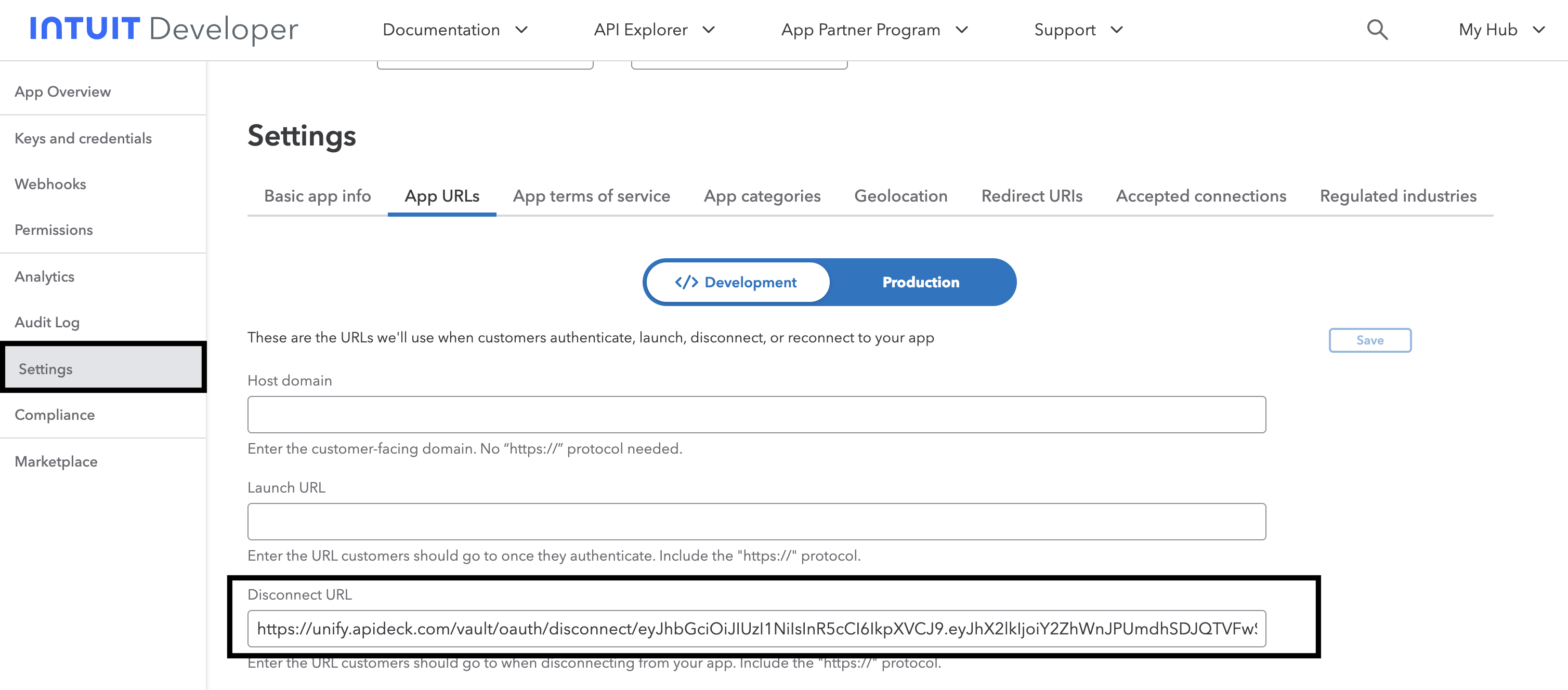
Select your app, then open Add Detail → Settings → App URLs.
-
Paste the URL from step 1 into the Disconnect URL field.
-
Save your changes.
3. Verify with a sandbox disconnect
-
Connect a QuickBooks sandbox company through Vault.
-
In QuickBooks Online, go to Settings (gear icon) → My Apps, locate your app, and click Disconnect.

-
Confirm that Apideck has registered the disconnect by calling the Get Connection endpoint:
curl --location --request GET 'https://unify.apideck.com/vault/connections/accounting/quickbooks' \
--header 'x-apideck-consumer-id: {CONSUMER_ID}' \
--header 'x-apideck-app-id: {APIDECK_APP_ID}' \
--header 'Authorization: Bearer {APIDECK_API_KEY}'
In the response, confirm
healthis"revoked". This is the signal that Apideck received the provider-initiated disconnect notification from Intuit. -
Confirm your webhook endpoint received a
vault.connection.revokedevent.
Optional: configure a Disconnect Landing Page (branded redirect)
By default, after a user disconnects from within QuickBooks Online, Intuit shows a generic confirmation message that their app has been successfully disconnected:

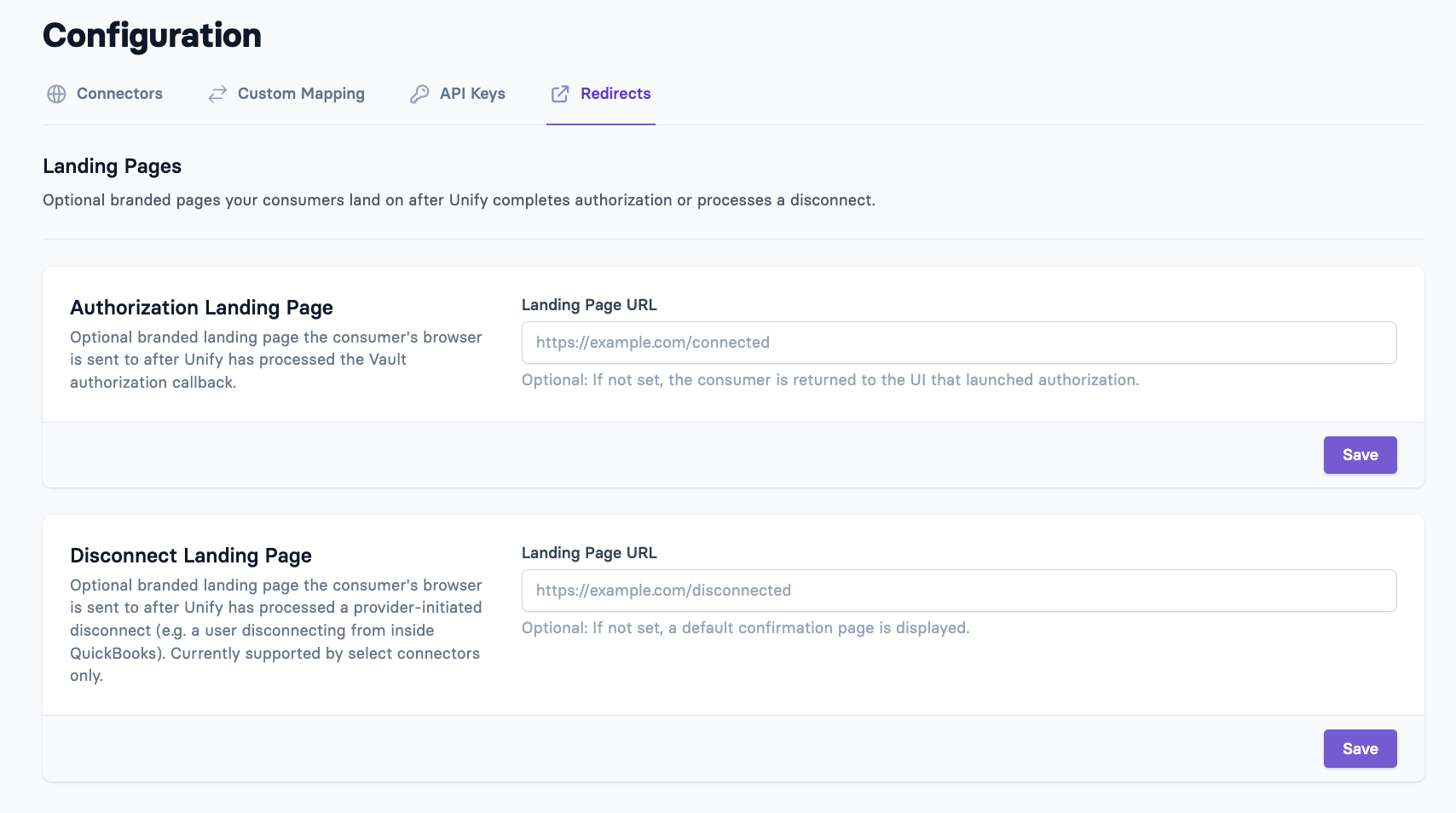
If you'd like users to instead be redirected to a branded page you control (for example, a "You've disconnected QuickBooks" screen with a reconnect button), configure a Disconnect Landing Page in Apideck.
- In the Apideck dashboard, go to Configuration → Redirects.
- Set the Disconnect Landing Page to the URL you want users redirected to after they disconnect.
- Save your changes.
Disconnect URL vs. Disconnect Landing Page
Setting Configured in Purpose Disconnect URL Intuit Developer (your app) Server-to-server notification from Intuit to Apideck when a user disconnects in QBO. Triggers vault.connection.revoked.Disconnect Landing Page Apideck (Configuration → Redirects) The branded page your user is redirected to in their browser after disconnecting.
Handling the vault.connection.revoked event
Once the Disconnect URL is configured, your webhook endpoint will receive a vault.connection.revoked event whenever a QuickBooks user disconnects on Intuit's side. Recommended consumer-side actions:
- Mark the connection as revoked in your own database.
- Stop any scheduled syncs or background jobs that depend on the token.
- Clear or invalidate any cached data tied to the connection.
- Surface a "Reconnect QuickBooks" prompt the next time the user is active.
For the full event payload and webhook subscription setup, see the Vault Webhook Events Guide.
Troubleshooting
Apideck isn't receiving disconnect notifications.
After disconnecting in QBO, call Get Connection and check the health field. If it's still "ok" a few minutes later, Intuit isn't reaching Apideck. Double-check that the Disconnect URL pasted into Intuit exactly matches the value shown in the Apideck dashboard: no trailing slashes, no extra whitespace. Save the Intuit app after pasting; unsaved changes are a common cause.
vault.connection.revoked isn't firing on my endpoint.
Confirm your webhook subscription includes the vault.connection.revoked event type and that your endpoint is reachable from the public internet. Check the webhook delivery log in the Apideck dashboard for failed attempts.
Users land on Intuit's generic page after disconnecting, not my branded page. This means the Disconnect Landing Page isn't set in Apideck. See the optional step above. This is a separate setting from the Intuit-side Disconnect URL.
I can't find the Disconnect URL field in my Intuit app. The field is under Add Detail → Settings → App URLs, not under Keys & OAuth. If you're looking at a newly created app, you may need to complete initial app setup (name, category, redirect URI) before the App URLs section is fully editable.
Next steps
- OAuth Credentials Guide: full QuickBooks connector setup
- Vault Webhook Events Guide: subscribing to and handling webhook events
- QuickBooks connector overview