Connect to NetSuite
This guide will walk you through the process of setting up NetSuite User Roles to get Access Tokens using Token-Based Authentication. Access tokens are used to authenticate requests to NetSuite APIs, which enables you to integrate NetSuite with other applications.
By following these steps, you can grant specific NetSuite User Roles access to generate Access Tokens and use them to access NetSuite APIs securely.
Steps:
Info: This guide assumes you have a basic understanding of NetSuite and its interface.
Create a new User role
To grant access to the Netsuite, you need to create a user role to get Access Tokens using Token-Based Authentication
-
User Roles to get Access Tokens using Token-Based Authentication:
-
Log in to your NetSuite account as an administrator.
-
Go to Setup > Users/Roles > Manage Roles.

-
Click on the 'New' button to create a new role.
 Give the role a name (e.g. Integration Role).
 -
Under the 'Permissions' tab, select the appropriate permissions that you want to grant to this role.
 Note that the role must have the necessary permissions to perform the tasks that the integration will be used for.
We recommend to review the permission levels for the various sections:
For "Transactions","Lists" we recommend to set the permission to "View" to allow reading data and "Full" to allow creating and/or modifying data. For "Lists","Currencies" we recommend to set the permission to "View" to allow reading data and "Full" to allow creating and/or modifying data. For "Setup", the only option is "None" or "Full", please set it to "Full" to grant access to the Netsuite instance.
For more details about the Netsuite permission levels, please refer to the Access Levels page in NetSuite Help Center.
Important for Projects Functionality: To enable customer-to-project mapping and full project management features, ensure the following permissions are granted:
- Lists > Projects: Required for accessing job/project records
- Transactions > Time Entry/Time Tracking: Needed for project time management
- Lists > Customers: Required for customer-project relationship mapping
Important for Financial Reports (Profit & Loss, Balance Sheet): These reports use the SOAP
getPostingTransactionSummaryAPI which only requires "Financial Statements" permission. Ensure the following permission is granted:- Reports > Financial Statements: View access required for financial report queries
- Lists > Accounts: View access for chart of accounts data (used for account name enrichment)
Important for filtered list calls (SuiteQL access): any list call with a
filter[*]parameter (e.g.filter[updated_since],filter[id_since]) oninvoices,bills, orcredit-notesis routed through NetSuite's REST/SuiteQL endpoint instead of SOAP. SuiteQL has its own access checks on every table touched by the query (thetransactiontable plus thecustomerJOIN), so on top of the standard Setup permissions the role must include:PERMISSION AREA LEVEL SuiteAnalytics Workbook Reports Edit Find Transaction Transactions View Invoice / Bill / Credit Memo Transactions View (per resource used) Customers Lists View The address subrecords joined into the invoice list (
transactionBillingAddress,transactionShippingAddress) inherit access from the parenttransactionrecord — there is no separateLists > Addresspermission to grant.If a permission is missing, NetSuite does not say which one in a single response. Each missing permission produces a distinct symptom:
What's missing Symptom on filtered list calls SuiteAnalytics Workbook 400 Bad Request — Invalid search query. Your current role does not have permission to perform this action.Find Transaction 400 Bad Request — Invalid search query. Search error occurred: Record 'transaction' was not found.Customers 400 Bad Request — Invalid search query. Search error occurred: Record 'customer' was not found.Invoice / Bill / Credit Memo (per type) 200 OKwithdata: []— query succeeds but every row of the corresponding type is silently filtered out, so the integration looks healthy while returning nothingThe Setup permissions
REST Web Services,SOAP Web ServicesandLog in using Access Tokensare needed for any Apideck connection (Apideck validates the connection through a SOAP call before any SuiteQL request runs); they are listed in the Setup table further below. Non-filter list calls andGET /accounting/{resource}/{id}calls go through SOAP and don't require SuiteAnalytics Workbook or Find Transaction.See Syncing large NetSuite transaction datasets for why filtered list calls are the recommended path for large datasets.
Transactions
TRANSACTIONS PERMISSION LEVEL Access Payment Audit Log View/Full Audit Trail View/Full Automated Cash Application View/Full Bill Purchase Orders View/Full Bills View/Full Calculate Time View/Full Cash Sale View/Full Cash Sale Refund View/Full Check View/Full Credit Card View/Full Credit Card Refund View/Full Credit Memo View/Full Credit Returns View/Full Customer Deposit View/Full Customer Payment View/Full Customer Refund View/Full Deposit View/Full Deposit Application View/Full Edit Forecast View/Full Enter Opening Balances View/Full Enter Vendor Credits View/Full Estimate View/Full Expense Report View/Full Finance Charge View/Full Find Transaction View/Full Fulfill Orders View/Full Generate Price Lists View/Full Generate Statements View/Full Import Online Banking File View/Full Invoice View/Full Invoice Approval View/Full Invoice Sales Orders View/Full Item Fulfillment View/Full Item Receipt View/Full Make Journal Entry View/Full Matching Rules for Online Banking View/Full Opportunity View/Full Pay Bills View/Full Payments View/Full Pay Sales Tax View/Full Post Vendor Bill Variances View/Full Posting Period on Transactions View/Full Purchase Order View/Full Receive Order View/Full Receive Returns View/Full Reconcile Edit Refund Returns View/Full Return Auth. Approval View/Full Return Authorization View/Full Sales Order View/Full Sales Order Approval View/Full Set Up Budgets View/Full Statement Charge View/Full System Journal View/Full Timer View/Full Time Entry View/Full Time Tracking View/Full Track Time View/Full Transfer Funds View/Full Vendor Bill Approval View/Full Vendor Payment Approval View/Full Vendor Return Auth. Approval View/Full Vendor Return Authorization View/Full Vendor Returns View/Full View Gateway Asynchronous Notifications View/Full View Payment Events View/Full Reports
REPORTS PERMISSIONS LEVEL SuiteAnalytics Workbook Edit Financial Statements View List
LISTS PERMISSIONS LEVEL Accounts View/Full Classes View/Full Companies View/Full Contacts View/Full Currency View/Full Customers View/Full Documents and Files View/Full Departments View/Full Items View/Full Locations View/Full Projects View/Full Subsidiaries View/Full Tax Records View/Full Vendors View/Full Setup
SETUP PERMISSIONS LEVEL Accounting Lists Full Accounting Management Full Deleted Records Full Log in using Access Tokens Full Other Lists Full REST Web Services Full SOAP Web Services Full Note: Financial reports (Profit & Loss, Balance Sheet) use the SOAP
getPostingTransactionSummaryAPI which only requires the Financial Statements permission under Reports. This is a less restrictive permission than SuiteQL which requires "SuiteAnalytics Workbook". Without Financial Statements permission, these endpoints will return 401 Unauthorized errors.
Assign a user to the role
It is recommended that you create a separate user for this purpose instead of assigning the role to an existing user. It helps with better tracking and auditing operations.
-
Click Lists > Employees > New
-
Enter the employee details (e.g. Integration User), and email address.

-
Click Access tab

-
select Give Access.
-
Enable Manually Assign or Change Password and specify a password.
-
-
Under Roles, select the role that you created in Step "Create a new User role" from the drop down list (e.g. Integration Role) and click Add.

Create an Application
Once the role is set up, you can follow these steps to generate the consumer Key & Secret:
-
Log in to your NetSuite account with a user who has been assigned the role (e.g Integration Role) that has access.
-
Go to Setup > Integrations > Manage integrations.

-
Click the 'New' button to create a new integration or select an existing integration that you want to use.

- Name: Enter a meaningful name (for example, Integration App)
- Authentication: Under the 'Authentication' section,
- select 'Token-Based Authentication.'
- For TBA: Authorization flow set
https://unify.apideck.com/vault/callbackas callback URL.
- Oauth 2.0: Under the 'Oauth 2.0**' section,
- Check "Authorization Code grant"
- Check "REST API services"
- Set
https://unify.apideck.com/vault/callbackas the redirect URI.
Click the 'Save' button to save the changes.
-
Once saved, the Consumer Key and Consumer Secret will be generated.
💡 REMARK: Copy the "Consumer Key" and the "Consumer secret". You can not access this information once you exit this screen.

Create Access tokens
Create a New Access Token with the Role just created.
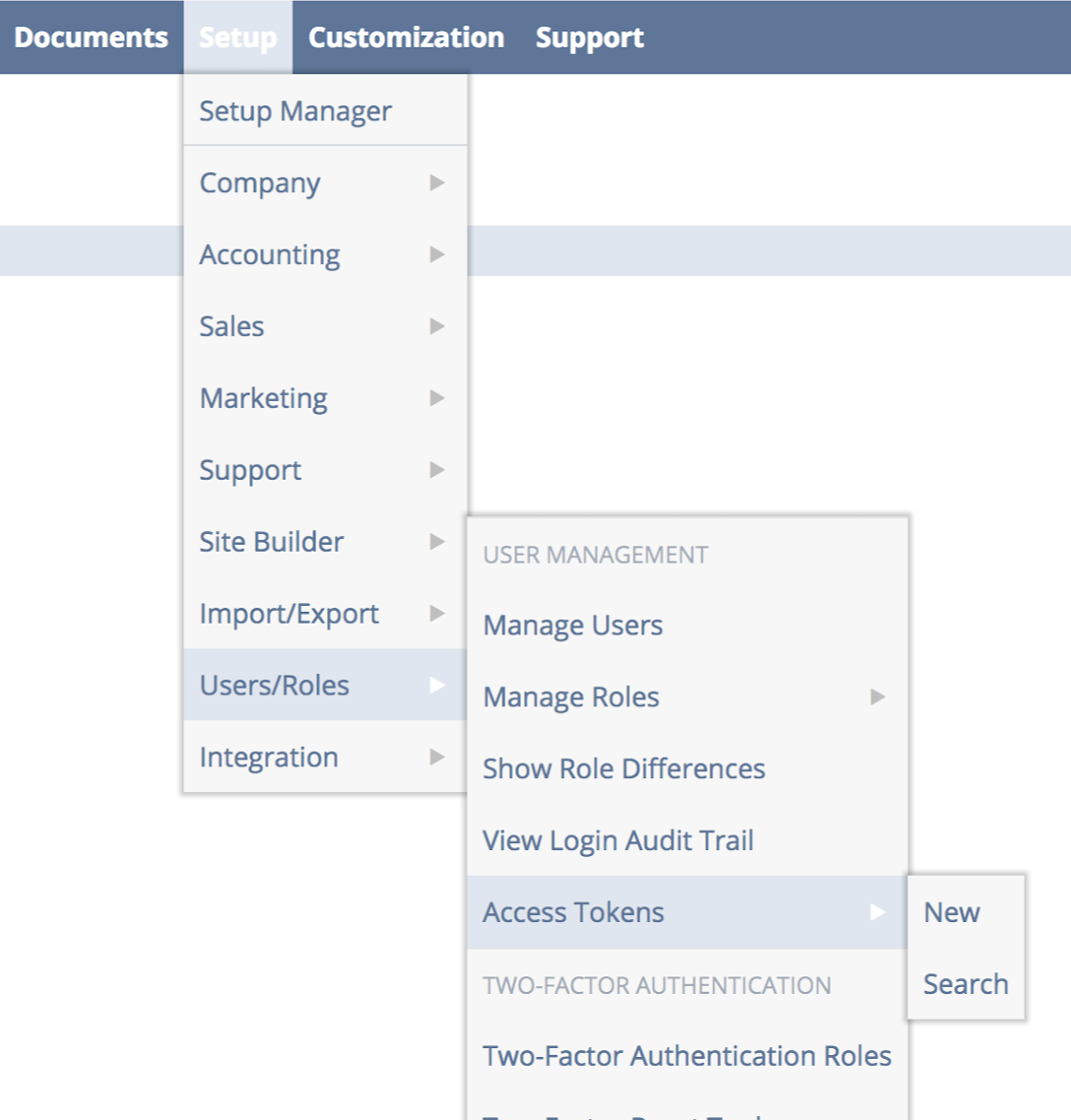
- Go to Setup > Users/Roles > Access Tokens.
-
Click the 'New' button to create a new Access token
-
Complete the form

-
Select the "Application name" that you have created in the previous step (e.g. Integration App).
-
Select the "User", which we created in the previous steps (e.g. Integration User)
-
Give the token a recognizable "token name", for example Integration Token
-
Click the 'Save' button to save the changes.
-
4- Once saved, the Account Token ID and Secret will be generated.
💡 REMARK: Copy the "Token Id" and the "Token secret". You can not access this information once you exit this screen.
Find your Account ID
-
Go to Setup > Company > Company Information
-
Copy the Account ID

Configure the Netsuite connection
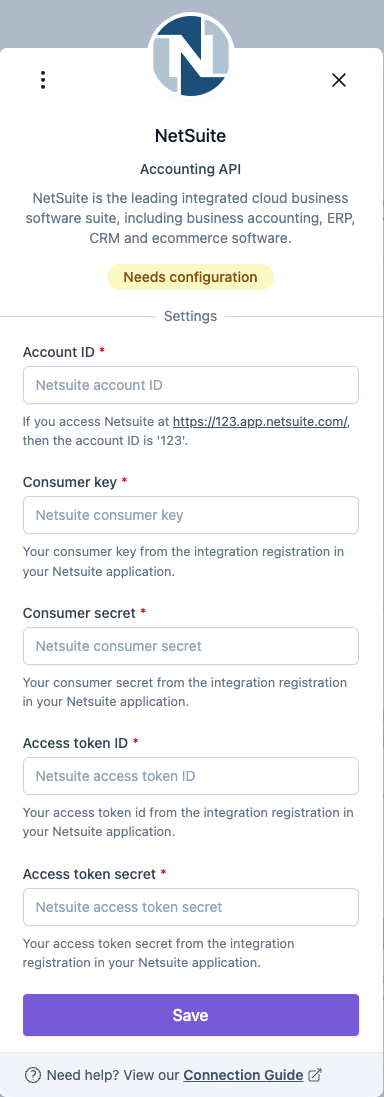
Enter the Account ID, Consumer Key, Consumer Secret, Token ID and Token Secret to get started with the integration.
Bank Feeds (optional)
If you want to push bank statements into NetSuite's Match Bank Data workflow through the Unify bank-feed-statements endpoint, a small amount of extra setup is needed on top of the standard connection above.
At a glance:
-
Install the Apideck Bank Feed bundle in your NetSuite account. Your Apideck contact will share the bundle ID and installation instructions.
-
Install the NetSuite Bank Statement Parsers SuiteApp (bundle ID
293699, published by Oracle NetSuite, free). This provides the CSV parser that the Apideck bundle feeds into. Install it from Customization → SuiteBundler → Search & Install Bundles. -
Create a Format Profile (Setup → Accounting → Financial Institution → Format Profiles) linking the Apideck connectivity plug-in to the NetSuite bank accounts you want to feed.
-
Provide two extra connection fields in the Apideck Vault for your NetSuite connection:
- Bank Feed RESTlet Script ID
- Bank Feed RESTlet Deploy ID
You can find both under Customization → Scripting → Scripts → Apideck Bank Feed RESTlet, on the Deployments tab. Each row's External URL contains
script=<numeric_id>anddeploy=<numeric_id>— those are the values to paste into the Vault.
The full walkthrough — required permissions, Format Profile field mapping and formatting preferences, account linking, day-to-day operations and troubleshooting — is in the dedicated Apideck Bank Feed for NetSuite setup guide. You only need that guide if you intend to use the bank-feed-statements endpoint; regular NetSuite integrations don't require any of these steps.