Liantis – Configuration Guide
Liantis is a Belgian HR and payroll service provider offering employers solutions for payroll administration, social secretariat services, and employee management.
How to register your Liantis integration with Apideck
Apideck enables you to build a native integration with Liantis, a Belgian HR and payroll service provider offering employers solutions for payroll administration, social secretariat services, and employee management. This guide explains how to obtain your Liantis API credentials and configure the Liantis connector.
Note: Liantis authenticates with the OAuth 2.0 client credentials flow. As the application owner (integration partner), you configure a single set of client credentials in Apideck. Your end users (the employers/werkgevers) then connect by entering only their company number — they do not create their own Liantis app.
Prerequisites
Liantis does not offer a self-service developer portal today. API credentials are issued through Liantis Integration Services as part of a partnership onboarding. Before you begin, you'll need to complete the onboarding below to obtain:
- A Client ID and Client Secret for the OAuth 2.0 client credentials flow
- Confirmation of the environment you've been granted access to (Accept / testing or Production)
1. Start the Liantis onboarding
There is no online application form. You can start the process in one of two ways:
- Via Apideck (recommended): Apideck can introduce you directly to Liantis Integration Services. Reach out to your Apideck contact and we'll make the intro.
- Directly: Email Liantis Integration Services at business.solutions@liantis.be.
At least one Liantis customer (an employer/werkgever who wants the integration) must be involved to initiate credential issuance and a test setup. That customer contacts their Liantis klantenadviseur (account manager), who escalates to Integration Services.
The onboarding has the following phases:
| Phase | What happens |
|---|---|
| Initiate | The employer and/or integration partner contacts Liantis Integration Services (directly or via Apideck). |
| Contract | Quote, approval, and signature. A contract phase and an integration fee apply. Who pays (partner or employer) depends on the use case. |
| Activation | Liantis plans and activates your access, and issues your OAuth client credentials. |
| Testing | You validate the setup. Liantis does not provide a generic sandbox, but a testing environment can be enabled together with the participating employer. |
| Support | Liantis verifies via logging and monitors the first live phase to support any starting problems. |
2. Configure the connector in Apideck
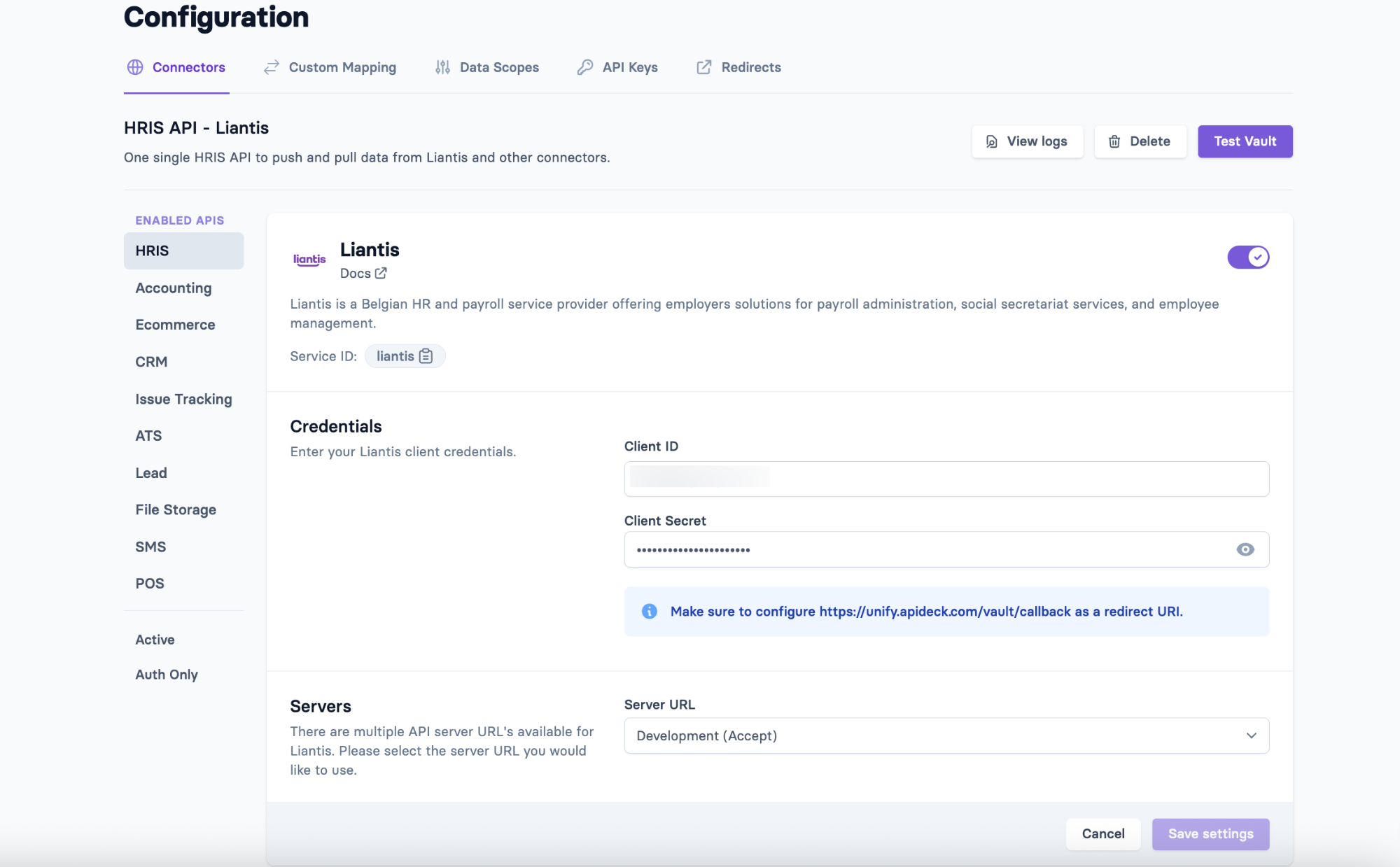
Once you've received your Client ID and Client Secret from Liantis, go to Apideck → Configuration → HRIS → Liantis.
Under Credentials, enter:
- Client ID — your Liantis OAuth client ID
- Client Secret — your Liantis OAuth client secret
Make sure https://unify.apideck.com/vault/callback is configured as a redirect URI.
3. Select the server (environment)
Liantis exposes multiple API server URLs. Under Servers, select the Server URL that matches the access you were granted:
- Production —
https://www.liantis.be - Development (Accept) —
https://accept.liantis.be
Use Development (Accept) during the testing phase, then switch to Production once Liantis has verified your integration.
Press Save settings to store your configuration. Your end customers can now connect their Liantis account.
FAQ and troubleshooting
Where do I get the Client ID and Client Secret?
They are issued by Liantis Integration Services during the activation phase of onboarding (see step 1). There is no self-service portal — credentials are provisioned manually as part of your partnership agreement.
Is there a sandbox?
Liantis does not provide a standalone sandbox. A testing environment is enabled in collaboration with the participating employer during the testing phase.
My connection works in testing but not in production
Confirm you've switched the Server URL from Development (Accept) to Production, and that Liantis has completed its verification and moved your access to the production environment.