BambooHR – Connection Guide
BambooHR is designed with small and medium sized businesses in mind. We set you free to focus on what matters most - your people.

How to Connect to BambooHR
- Before You Start
- How to Find Your API Key in BambooHR
- Access Levels
- Vault Connection Setup
- Notes
- Troubleshooting
Before You Start
You need two things from your BambooHR account, and you enter both yourself: there is no BambooHR app to install and no consent screen to approve.
| What you need | Where it comes from |
|---|---|
| API Key | Generated in BambooHR by a user with sufficient access (see Access Levels) |
| Subdomain | The mycompany part of https://mycompany.bamboohr.com |
The API key is sent to BambooHR over HTTP Basic authentication, with the key itself acting as the username. That means the key inherits the access level of the user who created it, so decide who creates it before you create it. See BambooHR's Getting Started With The API for the vendor's own description of the same mechanics.
How to Find Your API Key in BambooHR
Note: It's recommended that a person with the "Account Owner" role creates the API key for full read/write access.
To find your API Key in BambooHR, follow these steps:
-
Log in to your BambooHR account.
-
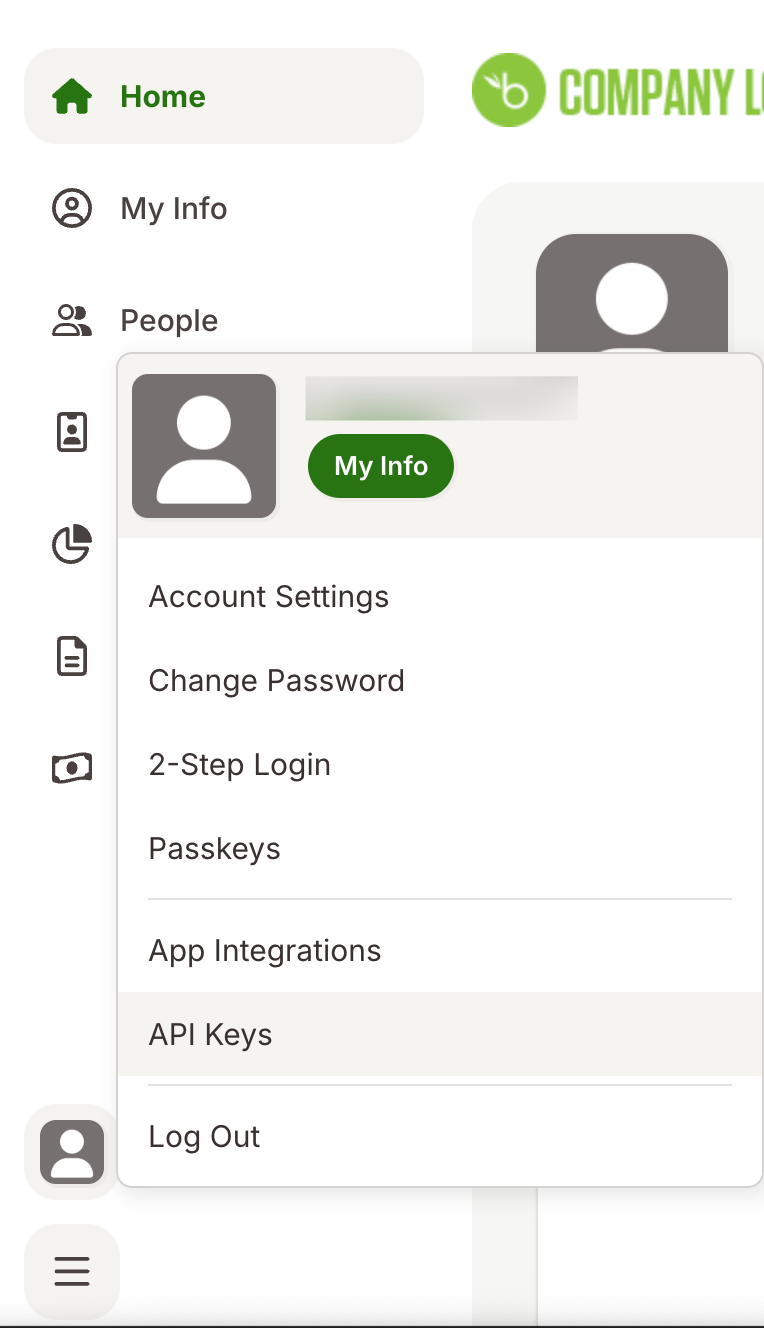
Click on your profile picture, at the bottom left corner.
-
Select API Keys from the menu.
-
If you don't have an API key already, you can create one by clicking on the Add New Key button.

-
Add the name and copy your API Key value. Copy it as soon as it is created and paste it straight into Vault, so you don't have to come back for it.

-
Copy your subdomain: it is the part of your BambooHR URL before
.bamboohr.com.
Access Levels
Note: If you cannot use an Account Owner to create the API key, you can create or use a custom access level with the necessary permissions configured.
This is the step that decides how much of your HR data the connection can read. Because the key carries the creating user's permissions, a key made by a low-privilege user still connects successfully and still returns successful responses: it simply returns fewer employees and fewer fields, with no error to tell you something is missing. If a read looks incomplete, the access level behind the key is the first thing to check.
BambooHR provides different access levels for controlling what information users can access:
- Employee Access Level: Limited access - the user sees only a small slice of the data. (Not recommended for API Key owner).
- Manager Access Level: Limited access - the user sees only a subset of employees and fields. (Not recommended for API Key owner).
- Custom Access Level: Configurable access level that can be customized for specific needs. (Recommended for the API key owner when an Account Owner cannot create the key.)
Using Pre-existing Custom Access Levels
If you already have a custom access level set up, you can use it for your API integration:
-
Click on Settings ⚙️ button on the top right, then click on Access Levels from the left navigation menu.

-
Find the custom access level you want to use and click on it.
-
Make sure the API user (the employee whose account will create the API key) is assigned to this access level. If not, click on Add Employee and select the employee from the dropdown.
-
Verify that the access level has the necessary permissions configured.
Creating New Custom Access Levels
To create a new custom access level and assign it to users, follow these steps:
-
Click on Settings ⚙️ button on the top right, then click on Access Levels from the left navigation menu.
-
Along with "Levels" click on the
+button to create a new custom access level. Select Custom Access Level.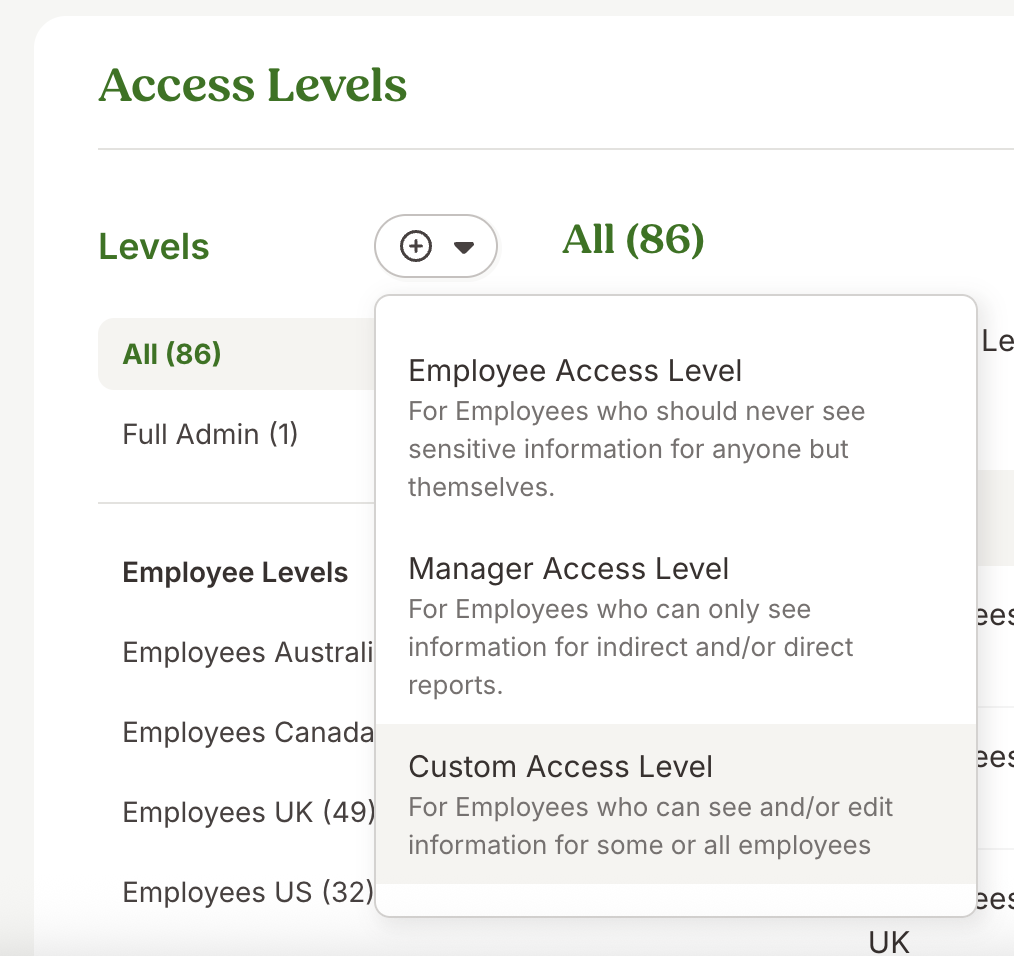
-
Enter name and description for the new custom access level and click on Next Step.

-
Under What Can People with this Access Level Do?, scroll down to the Settings section and check the box next to "Company Field Settings".
This permission is required to access company-level field data (such as
division_idanddepartment_idfields) through the API. Click on Next Step when done.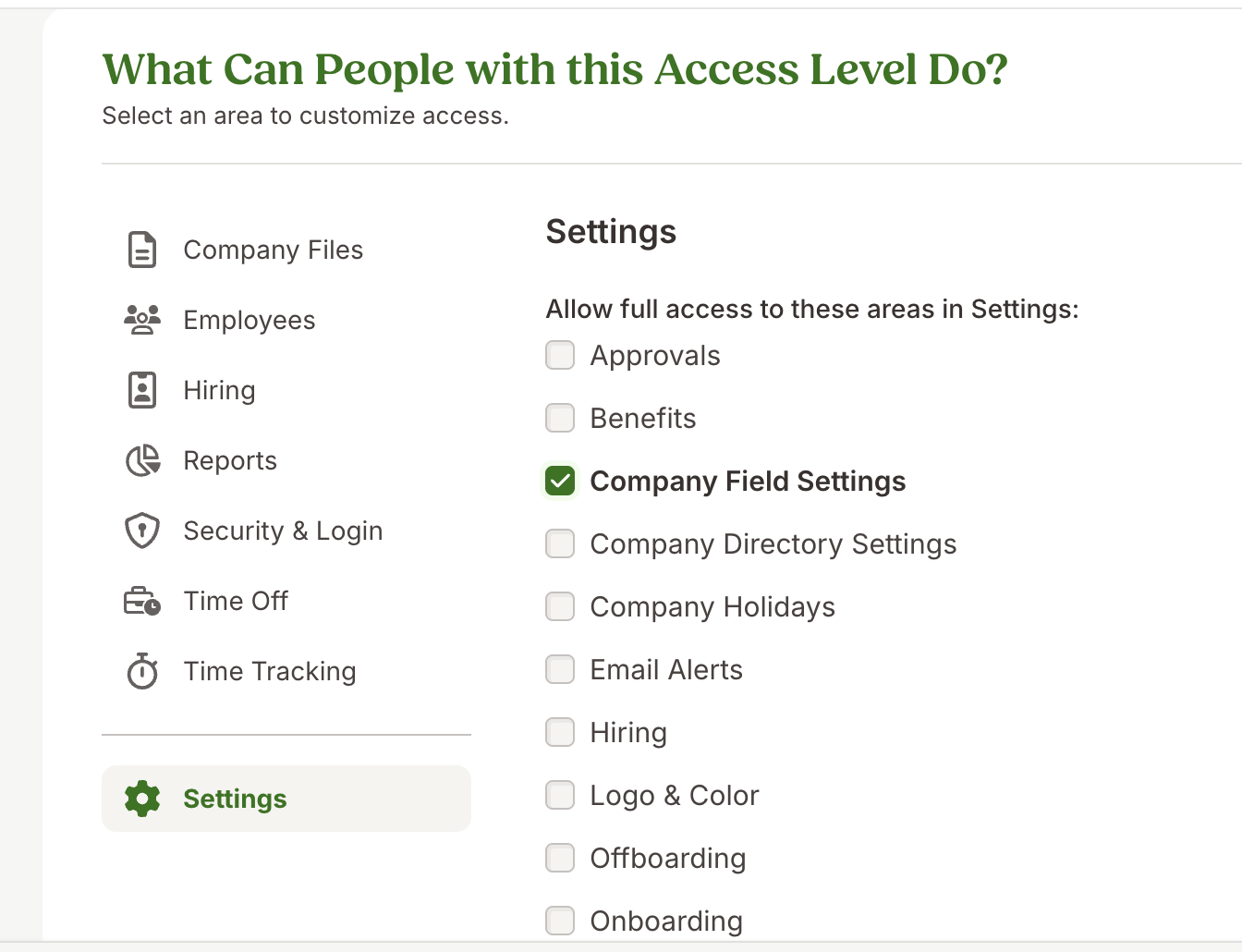
-
Under What this Access Level Can See step, make sure you are on See About other Employee section.

-
Select the types of permissions you want to allow this role to access for other employees. If you need Read-Only, select View Only, if Write access is needed, select Edit.

-
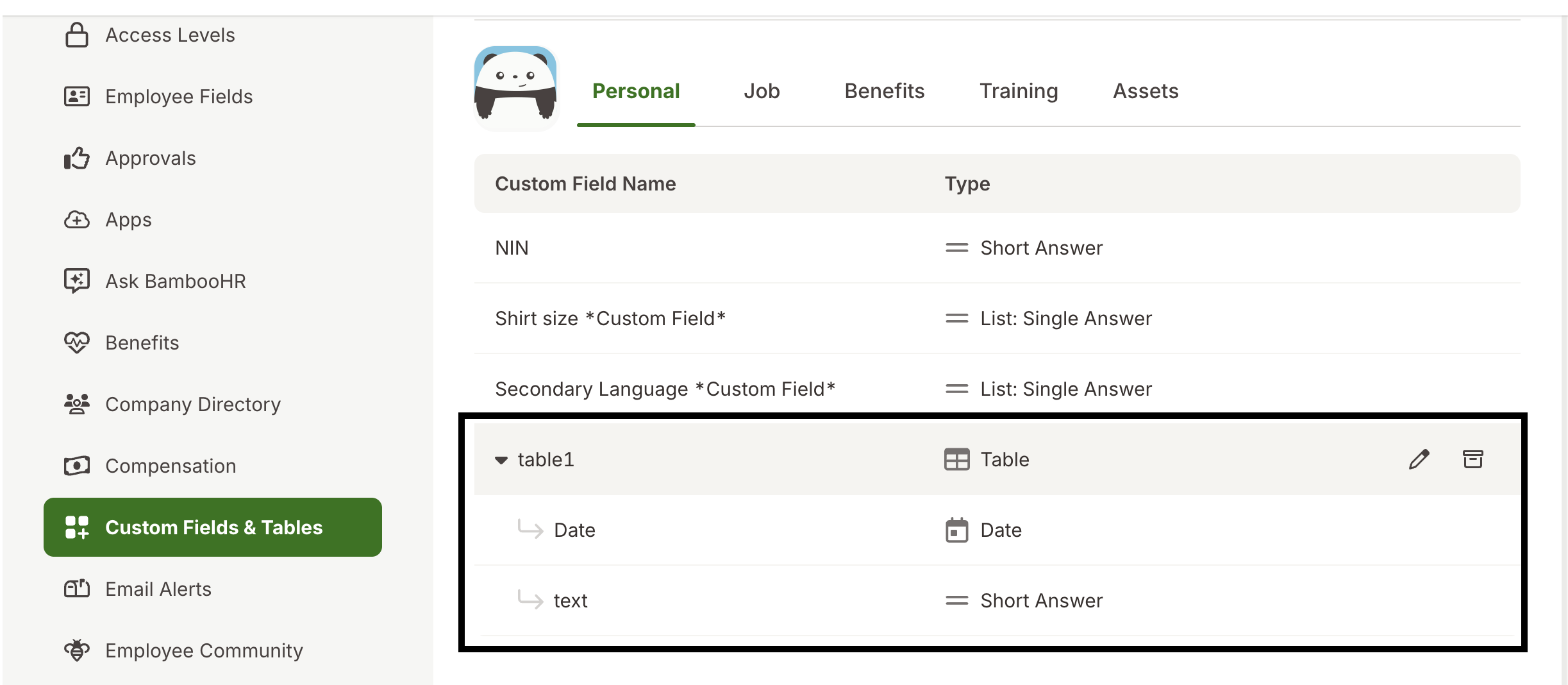
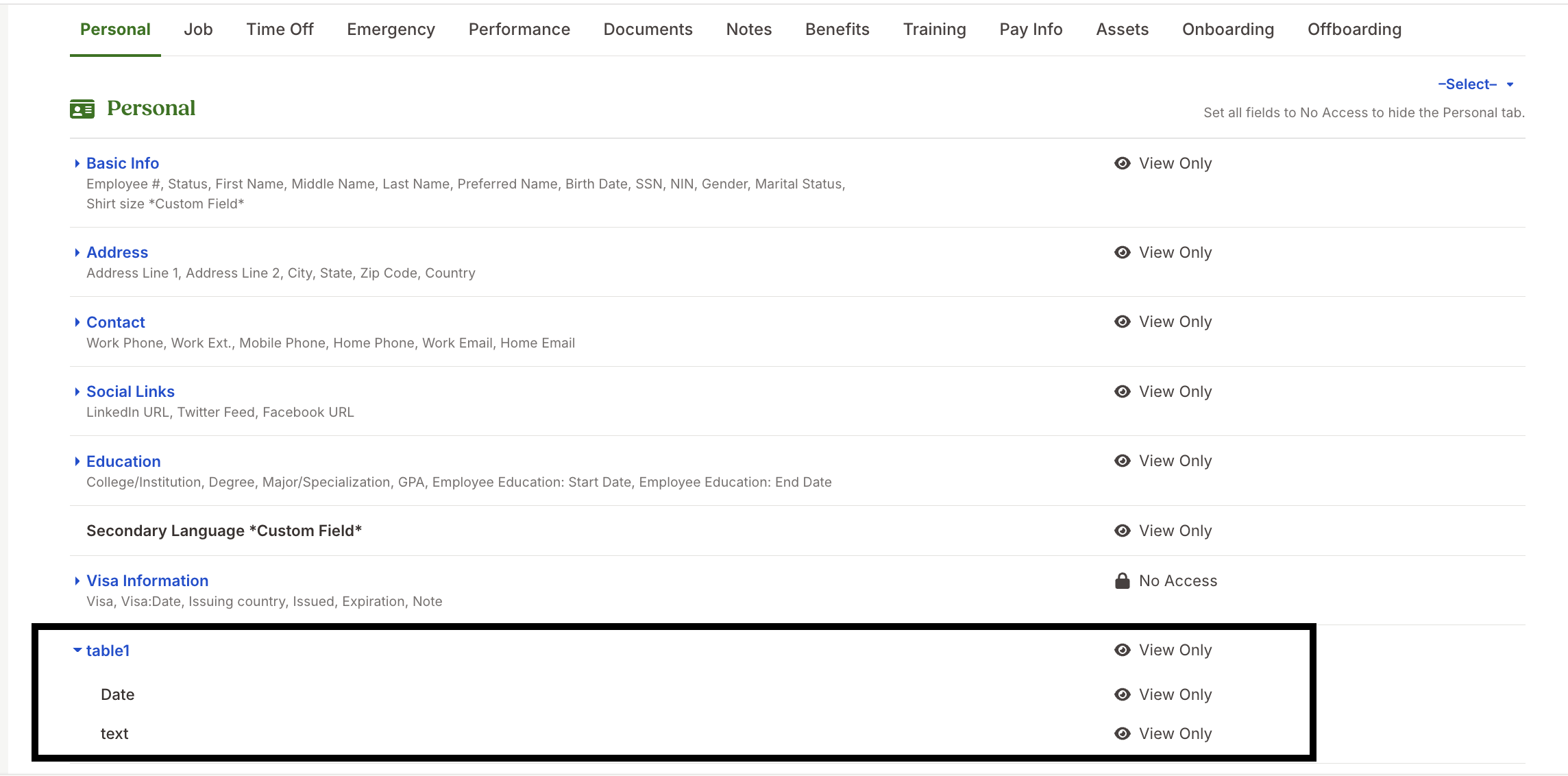
If you need to access tabular data (custom tables) through the API, navigate to the appropriate section under What this Access Level Can See (for example, Personal, Job, etc.) where your custom tables are located and grant permissions to the specific tables you need. You'll need to enable access to each table that should be accessible via the API.
For example, if your table is under Personal, navigate to the Personal section and enable the required table permissions:
-
Save the changes and add an employee to the custom access level you've created.

-
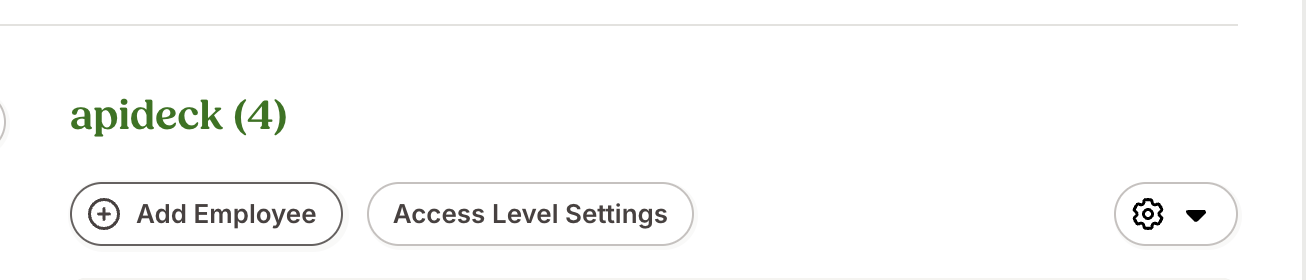
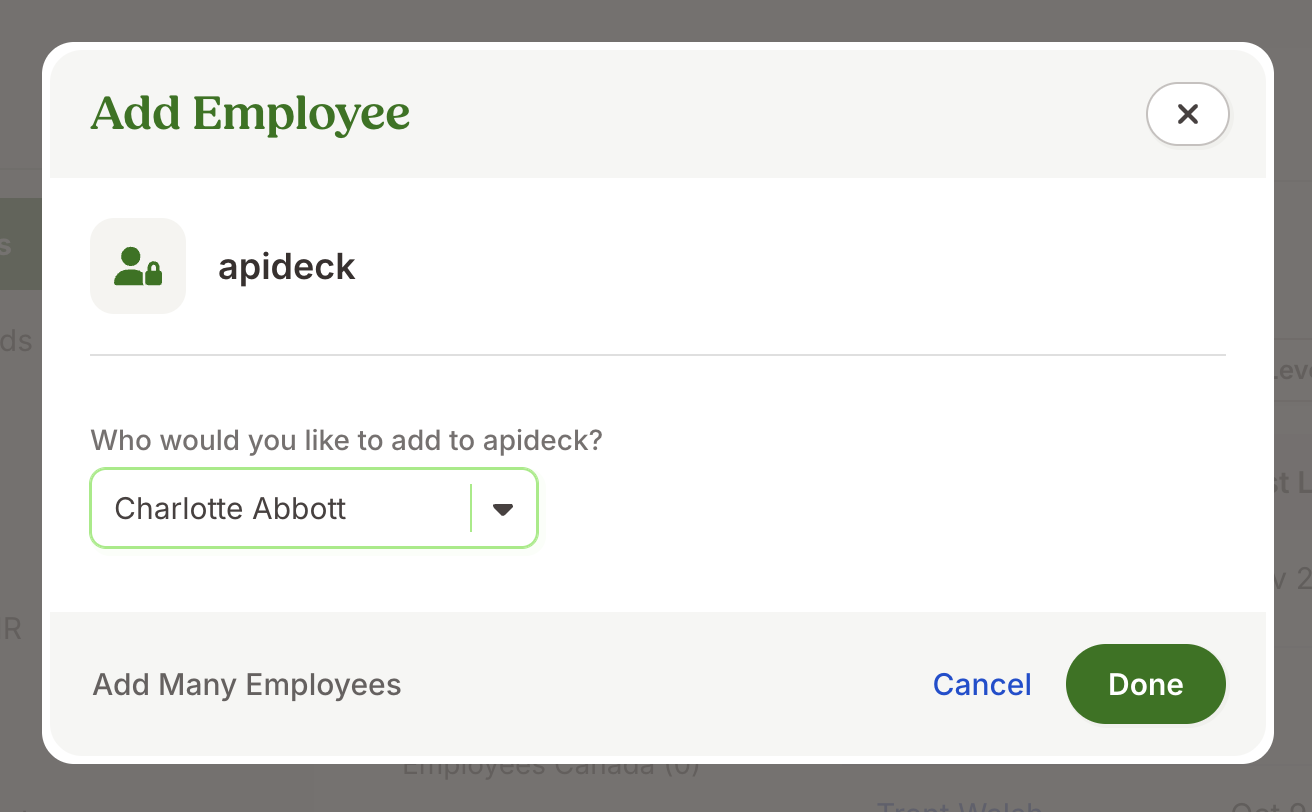
Click on Add Employee button. Select the employee name from the dropdown and click on Done.
-
Once the custom access level is assigned, users with that access level will have the specified permissions, including the ability to create API keys with write access if selected.
Vault Connection Setup
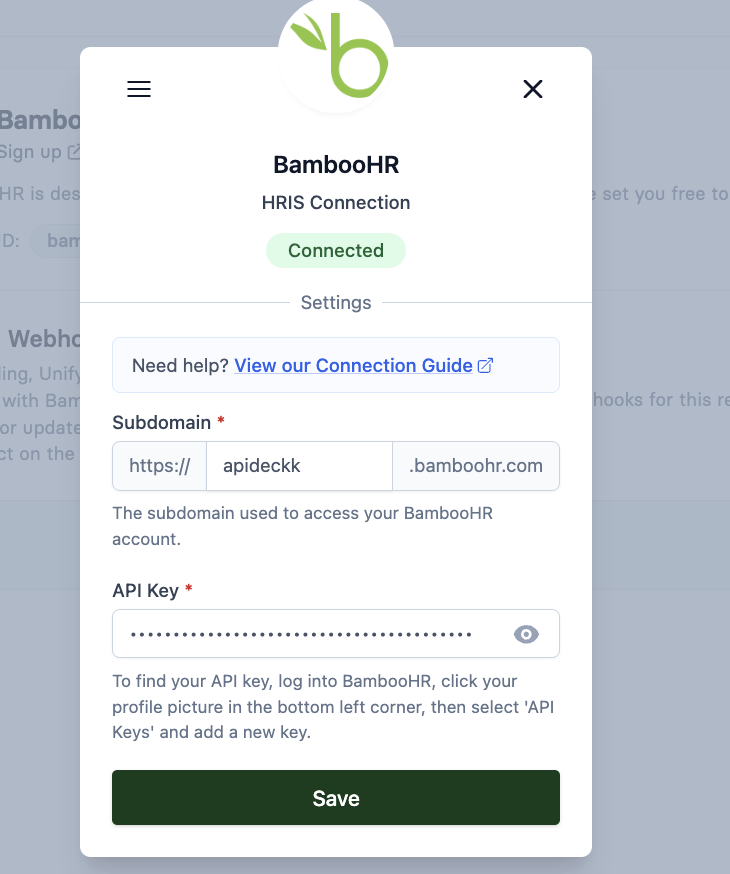
Open the BambooHR connection in Vault and fill in the two fields:
| Field | Value |
|---|---|
| Subdomain | Just the subdomain, without https:// or .bamboohr.com (for https://mycompany.bamboohr.com, enter mycompany) |
| API Key | The key you copied in BambooHR |
Click Save to authorize the connection.
You're connected now 🎉.
Notes
- Revoking the key disconnects the integration. Deleting the key in BambooHR, or removing the creating user's access level, stops the connection working. Generate a new key and update the API Key field in Vault to restore it.
- No OAuth app is involved. BambooHR also publishes an OAuth 2.0 route for Marketplace applications, but this connector authenticates with your own API key over HTTP Basic. If you arrived expecting a consent screen or a client ID and secret, you are on the right page and neither applies here.
- Testing uses the same kind of credentials as production. BambooHR has no separate sandbox with its own key format, so a test connection is simply another account's subdomain plus a key generated in that account. If you would rather not develop against live employee records, you can request a BambooHR developer test account (dummy data only) at partners.bamboohr.com/test-account; it is created manually by BambooHR, so ask your BambooHR contact for an expected turnaround.
Troubleshooting
| Symptom | What to check |
|---|---|
| The connection fails immediately after saving | Confirm the Subdomain field holds only the subdomain (mycompany), not the full URL, and that the API key was pasted without leading or trailing spaces. |
403 responses and the connection stops working, but you can still log in to BambooHR normally | Presenting an unknown API key repeatedly makes BambooHR temporarily disable API access for the account. Correct the key in Vault first, then wait for BambooHR to lift the block before retrying. |
| Reads succeed but return fewer employees than expected | The key's access level does not cover those employees. Recreate the key from an Account Owner, or widen the custom access level under See About other Employee, then update the key in Vault. |
| A specific field or custom table is always empty | The same cause at field level: grant that section or table in the custom access level (steps 4 and 7 above), then generate a fresh key and update Vault. |
| Employee changes show up later than expected | Change detection for this connector is poll-based rather than instant, so events arrive shortly after the change rather than at the moment it happens. |
Still stuck? Contact Apideck Support with your connection id and the approximate time of a failing request.