Hibob (OAuth) – Configuration Guide
bob is a people management platform that helps fast-growing companies bring out the best in their employees. OAuth 2.0 authorization-code flow for multi-tenant connections.
How to create an OAuth app in HiBob
This guide is for application owners: the team integrating their SaaS product with HiBob via Apideck. You will register an OAuth marketplace app in the HiBob developer portal, copy three credentials (Client ID, Client Secret, App ID), and paste them into your Apideck integration configuration. Once that is done, your end users (consumers) will be able to connect their own HiBob tenant in one click, they will never see these credentials.
Overview
To complete the setup you will:
- Join HiBob's Tech Partner programme, which unlocks the developer portal and a Bob test account.
- Create a marketplace app in the HiBob developer portal.
- Configure redirect URI and scopes.
- Copy
Client ID,Client Secret, andApp ID. - Enter them in Apideck under Configuration → HRIS → HiBob (OAuth).
- (Before going live) submit the app to HiBob's Technical Review.
Prerequisites
- Membership of the HiBob Tech Partner programme, administered through PartnerStack. Accept HiBob's Tech Partner Terms at dash.partnerstack.com/hibob; if your company is not in the programme yet, apply first via the HiBob tech partner application. Accepting the terms unlocks three things you will use below: a dedicated Bob test account, access to the developer portal, and the optional Security Badge Certification.
- PartnerStack allows only the account owner to add and manage users. Ask whoever owns your company's PartnerStack account to invite the engineers who need portal access early, chasing the wrong person is the most common cause of access delays.
- Access to the HiBob developer portal at developers.hibob.com. The portal user is created at app.hibob.com.
- Your consumers need no HiBob partnership of their own. They only need a Bob tenant and an admin who can install marketplace apps.
1. Create the app in the HiBob developer portal
- Sign in to
https://developers.hibob.comwith your Bob Partner account. - Open My apps in the sidebar and click Create app.
- Fill in the Basic Information section:
- App name: the name your consumers see during install (for example,
Acme Integration). - Description: a brief explanation of what the app does inside their HiBob tenant.
- Builder company name: optional; defaults to your partner organization name.
- Icon: minimum size 160×160 px, 1:1 ratio. This shows on the consent screen, so use a recognizable logo.
- App name: the name your consumers see during install (for example,
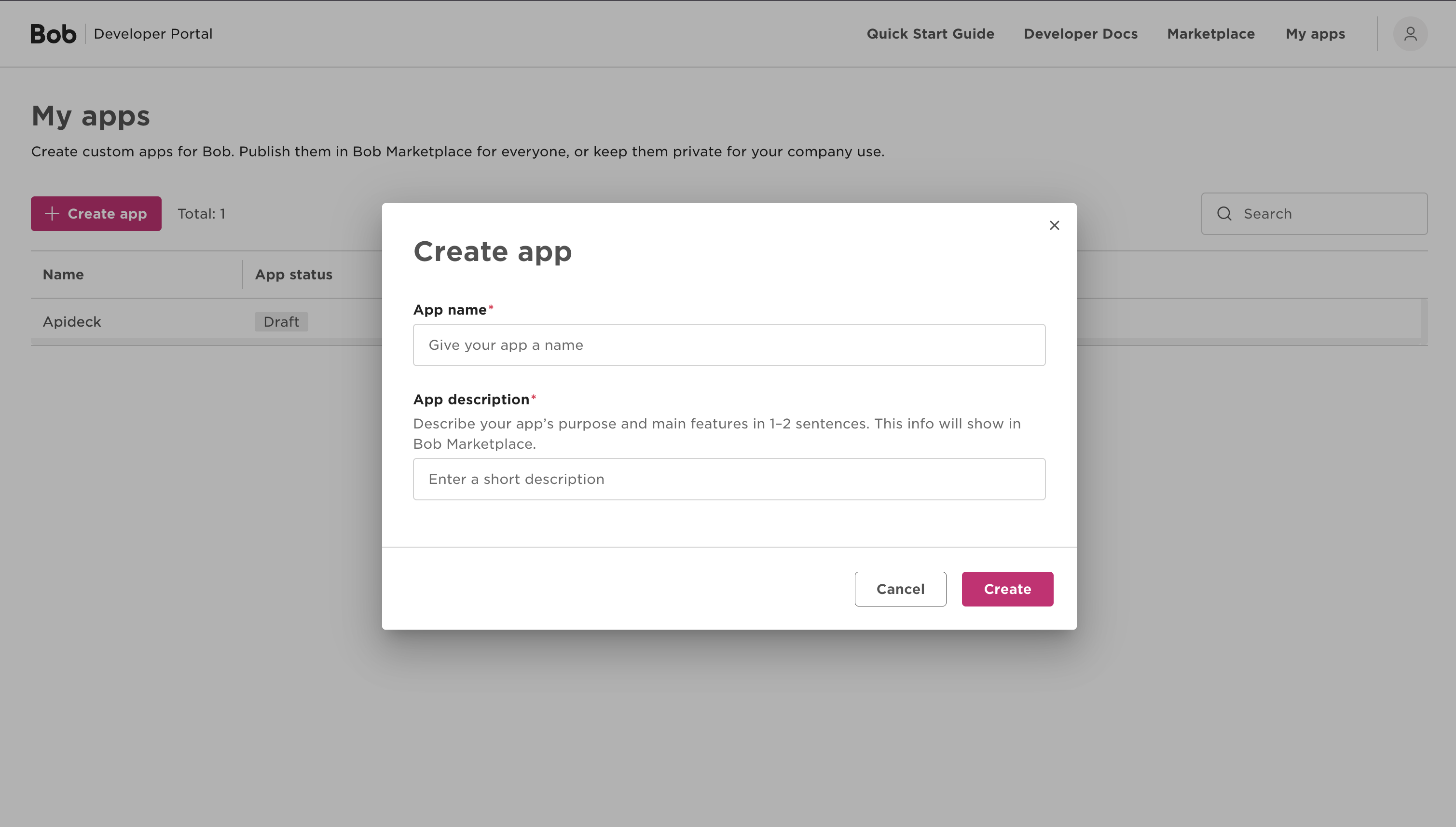
HiBob's own walkthrough of the form is in Add and submit an app.
2. Configure the OAuth redirect URI
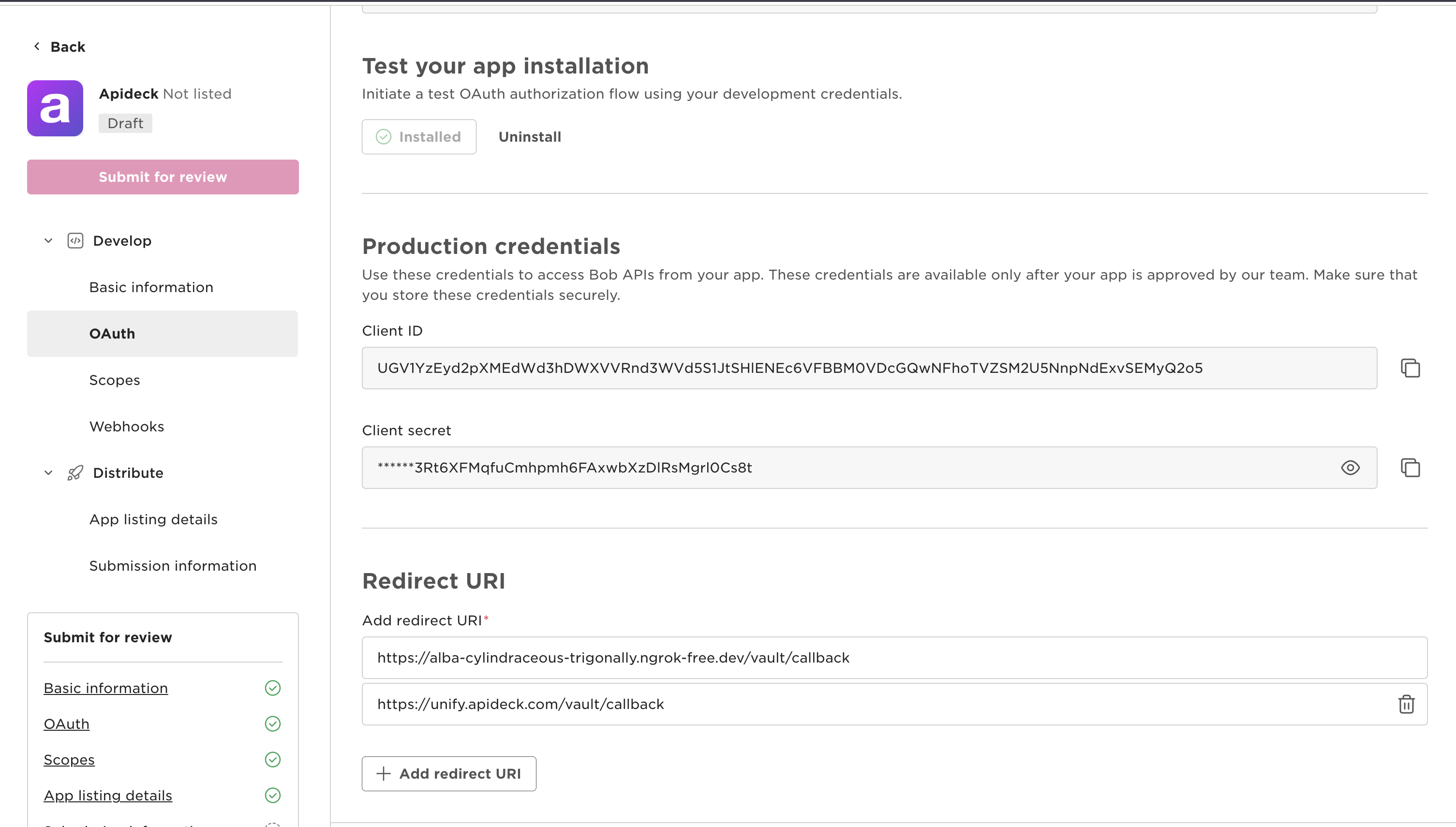
In the app's OAuth section, add the following redirect URI exactly:
https://unify.apideck.com/vault/callback
Notes:
- The value is case-sensitive and must include the
https://prefix. - No trailing slash.
3. Select scopes
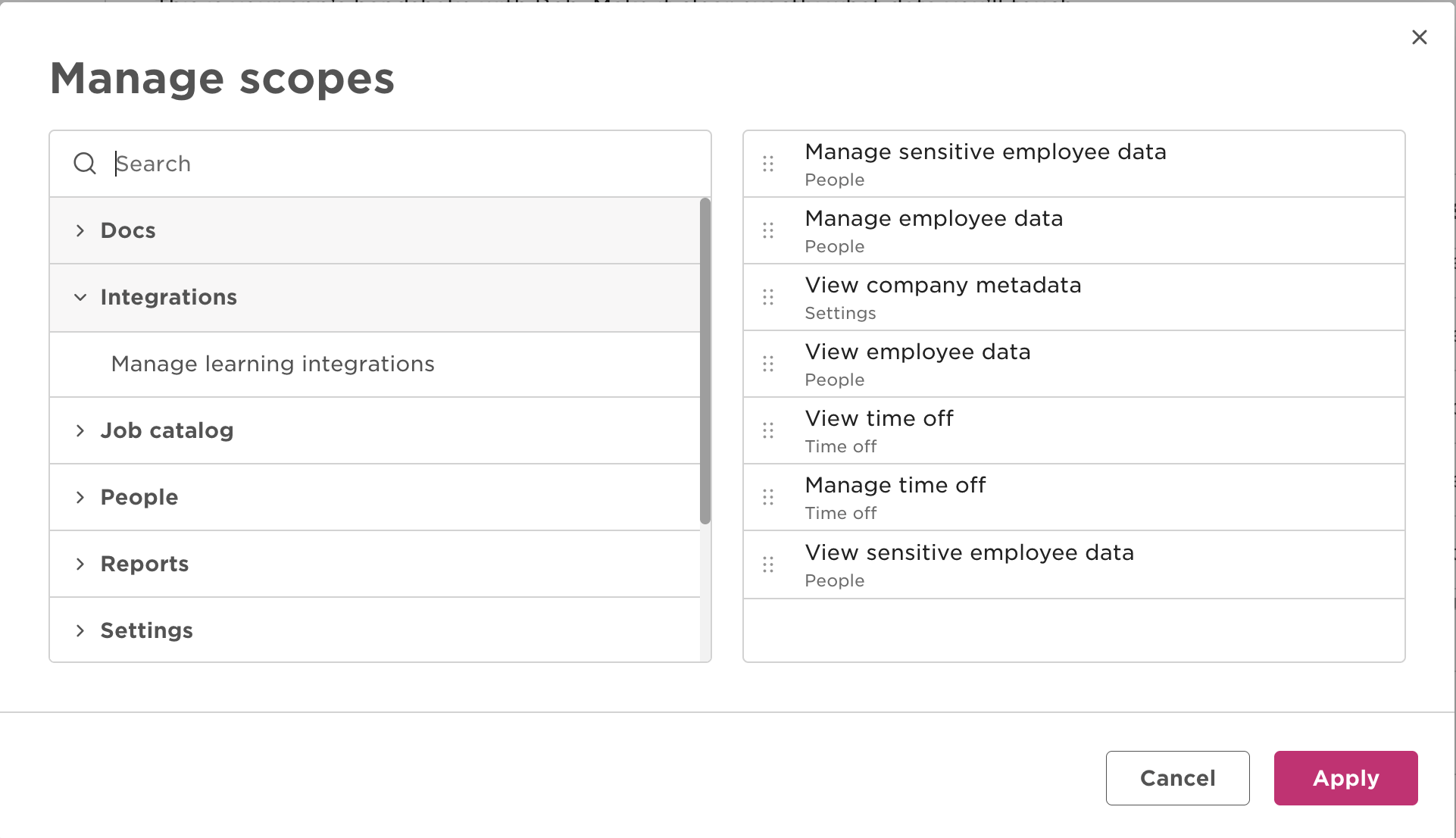
Under Scopes, enable at least the scopes that match the resources you intend to expose. For the unified HRIS resources currently supported by this connector (people, departments, time-off, titles, employee-work-history, company-fields), enable:
| Scope | Why |
|---|---|
employee_data:read | People search, get-a-person, and employee work history |
company.metadata:read | Read departments, titles, and company fields |
timeoff:read | Read time-off requests |
employee_data.sensitive:read | Sensitive employee field categories (EEO, financial, payroll, identification, UK tax) |
employee_data:write | Optional, for employee mutations only |
employee_data.sensitive:write | Optional, writes sensitive employee fields |
timeoff:write | Optional, for time-off mutations only |
Note: This connector does not request
timeoff.sensitive:read, so employees on private time-off policies are excluded from time-off reads. HiBob also returns200with inaccessible sensitive fields silently omitted rather than an error, so granting a narrower set than listed above will drop those fields from responses without failing the request. Because HiBob does not support re-consent, changing an app's scopes later requires uninstalling and reinstalling the app in every tenant, grant the full set above up front.
Apply the principle of least privilege: enable only what your product needs. Consumers see this list on the install screen and adding scopes later requires re-authorization. HiBob maps each scope to the endpoints it unlocks in Scopes mapping to endpoints.
4. Copy your credentials
Navigate to the OAuth section of the app and copy the three values listed below. Keep them somewhere safe, because Client Secret is shown once.
| Value | Where to find it | What it's used for |
|---|---|---|
| Client ID | OAuth → Development credentials (or Production credentials after review) | Token exchange (server-to-server) |
| Client Secret | OAuth → Development credentials (or Production credentials after review) | Token exchange (server-to-server) |
| App ID | OAuth → App ID (a short alphanumeric code, e.g. WH4SQ5XVL2) | Placed on the HiBob install URL so HiBob knows which app the consumer is installing |
Important:
App IDandClient IDare different values. HiBob's install URL takesapp_id; the token endpoint takesclient_id. Apideck stores both and uses them in the right place automatically, but you must enter each in the correct field.
5. Configure the connector in Apideck
- Open the Apideck HiBob (OAuth) connector settings in the Apideck Dashboard (Configuration → HRIS → HiBob (OAuth)).
- Under Use your HiBob client credentials, paste:
- Client ID: the OAuth
client_idfrom step 4. - Client Secret: the OAuth
client_secretfrom step 4.
- Client ID: the OAuth
- Under HiBob OAuth, paste:
- HiBob App ID: the
app_idfrom step 4 (e.g.WH4SQ5XVL2). - Credentials Type:
Developmentwhile you are still using the DevelopmentClient ID/Client Secretfrom the HiBob portal (this addsmode=devto the install URL so HiBob accepts the pre-review credentials). Switch toProductiononly after HiBob's Technical Review has issued Production credentials. This is separate fromEnvironmentbelow,Environmentcontrols the API host, whileCredentials Typecontrols which OAuth credential set is in use.
- HiBob App ID: the
- Under Environment Configuration:
- Environment: selects the API host:
Productionforapi.hibob.com,Sandboxforapi.sandbox.hibob.com. Your Bob partner test account lives on the production host, so leave this onProduction.Sandboxis only for Bob accounts that purchased HiBob's Sandbox add-on, with your app installed in that sandbox tenant; for any other account every call fails with401, and HiBob does not document OAuth apps against the sandbox host.
- Environment: selects the API host:
- Click Save settings.
Click Test Vault to walk through the OAuth flow yourself once. This confirms the redirect URI, scopes, and credentials are wired correctly before consumers see the app.
6. (Before going live) submit for Technical Review
HiBob requires every public marketplace app to pass a Technical Review before production credentials are issued. The review is gated by a short certification video.
- Record a 5–6 minute screen capture demonstrating, with demo data only:
- The OAuth installation flow (consent screen + redirect back to your product).
- The initial data sync (showing employees, departments, etc. appearing in your product).
- Any lifecycle events your app handles (webhooks, status changes).
- The uninstall flow (consumer revoking the app from HiBob).
- Use the same app ID as the submission.
- Submit the video to HiBob no later than 14 days after the initial app submission.
- Provide a customer-facing user guide alongside the submission.
Once approved, HiBob issues Production credentials in the OAuth section. Replace the development Client ID / Client Secret in Apideck with the production ones and switch Credentials Type from Development to Production (this drops mode=dev from the install URL). Leave Environment on Production unless the customer has HiBob's paid Sandbox add-on and your app is installed in that sandbox tenant.
Ask your HiBob partner contact for an expected timeline for the review so you can plan your launch around it, and keep building against the development credentials in the meantime, everything except production credentials works before approval.
Security Badge Certification (optional)
Accepting the Tech Partner Terms also unlocks HiBob's Security Badge Certification. It is optional and not a go-live blocker: an uncertified app still publishes and still works.
What changes is what customers see. Without certification, your listing publishes without the Security Certified Badge, and its Marketplace listing page carries a disclaimer stating that the app is not security certified. Enterprise buyers do read that page, so certification is worth scheduling, and you can complete or resubmit it at any time, so launching first and certifying afterwards is a supported path.
FAQ and troubleshooting
Can I use this connector without a HiBob partner account?
No. HiBob restricts OAuth marketplace apps and developer portal access to approved Marketplace and technology partners, so the partner account is the entry requirement for building on HiBob through Apideck.
Do my consumers need to do anything with these credentials?
No. Your Client ID, Client Secret, and App ID stay in your Apideck configuration. A consumer's Bob admin authorizes the install in one click and never sees or enters a credential.
A consumer disconnected but their connection still looks active (or keeps failing)
Removing the integration takes two steps on the consumer's side: disconnect in Apideck and uninstall the app in Bob under Settings → Integrations → Marketplace apps. HiBob exposes no way to read install state, so doing only one leaves the connection either failing with 401s or still showing as connected. Build that expectation into your own offboarding instructions and support macros.
invalid redirect_uri on the consent screen
HiBob is comparing the redirect_uri query parameter against the URI registered on the app. Ensure it is exactly https://unify.apideck.com/vault/callback (no trailing slash, no extra path components, https not http).
invalid_client from the token endpoint
The Client ID or Client Secret does not match. Re-copy both from the OAuth section in the HiBob portal, and make sure you are looking at the right environment (Development vs Production) and that you have not pasted the App ID into the Client ID field by mistake.
Install URL returns "App not found"
The app_id query parameter is wrong. In Apideck, verify the HiBob App ID field matches the short alphanumeric code shown in the HiBob portal's OAuth section (e.g. WH4SQ5XVL2). This is not the same as Client ID.
Consumer sees fewer scopes than expected on the consent screen
Apideck only requests the scopes you enabled in the HiBob portal. Open the app in the portal, add the missing scopes, and have the consumer reconnect (the existing token does not auto-upgrade).
Production credentials show as locked
Production credentials are only issued after the Technical Review passes. Keep Credentials Type set to Development until approval. Apideck will continue to send mode=dev on the install URL so HiBob accepts the development credentials.
Reference
OAuth endpoints used by this connector, for reference when you register the app:
| Purpose | Endpoint |
|---|---|
| App install (authorization) | https://app.hibob.com/api/marketplace/apps/install |
| Token exchange and refresh | https://auth.app.hibob.com/oauth2/v1/apps/token (form-encoded) |
Resources
- HiBob developer portal
- HiBob OAuth 2.0 docs
- HiBob app submission guide
- HiBob scopes reference
- HiBob Tech Partner portal (PartnerStack)
- HiBob partner support for partner, API, and test-account questions:
partnersupport@hibob.io - Apideck Support for questions about the connector or your Apideck configuration