AFAS Software – Connection Guide
AFAS Software provides comprehensive business software solutions including ERP, HR, and payroll management for small to medium-sized businesses.

How to Connect to AFAS Software
This guide will walk you through the one-time setup in AFAS Profit: adding an App Connector, importing the GetConnectors Apideck maps, and entering your details in Apideck Vault, so Apideck can securely access your data.
1. Add a New App Connector
- Log in to AFAS Profit.
- Navigate to
General → Management → App Connector. - Click New.
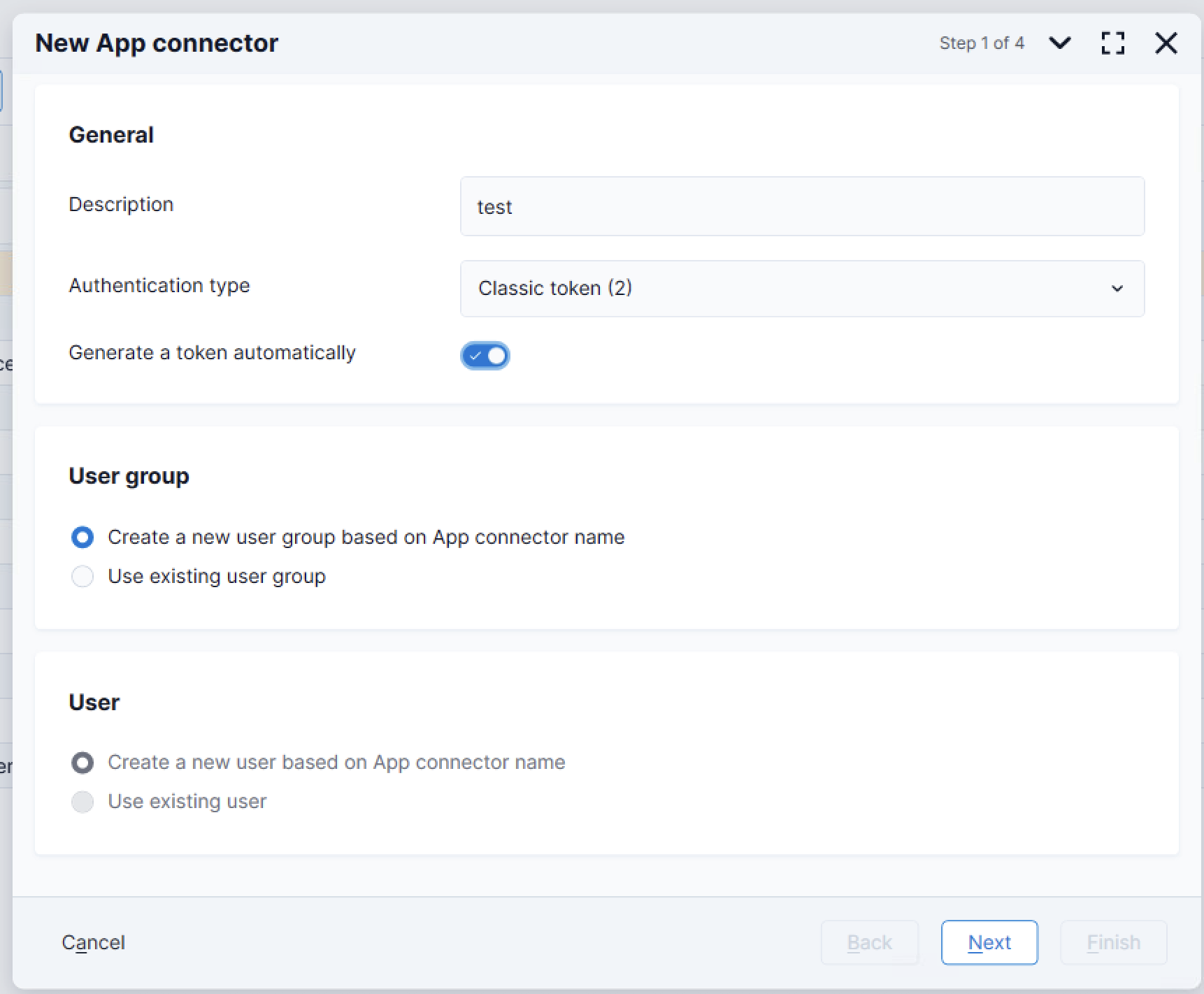
Use the following settings:
- Description:
Apideck(or the name of your app). - Automatically generate a token: leave checked.
- Create a new user group based on the App Connector name: leave checked.
2. Import GetConnectors
A note on language. AFAS translates standard menus and field captions to your selected language, but GetConnector names, data-collection names, and custom fields keep the name they were created with (often Dutch). If a label looks different from this guide, match by meaning. Common pairs:
English Dutch Employees (GetConnector) Medewerkers Employee data / detail Medewerkergegevens Employer Werkgever Organizational unit Organisatorische eenheid Employment end date Einddatum dienstverband Filter on these values Filter op deze waarden
Apideck maintains pre-configured GetConnector packages with all the fields we map. Import the one(s) for the vertical you need:
| Vertical | Package |
|---|---|
| HRIS | AFAS_Getconnectors_HRIS.zip |
| Accounting | (ZIP forthcoming: see "Manual enablement" under the Accounting subsection) |
In the App Connector wizard:
- Go to the GetConnectors step.
- Click Actions → Import.
- Select the ZIP for your vertical.

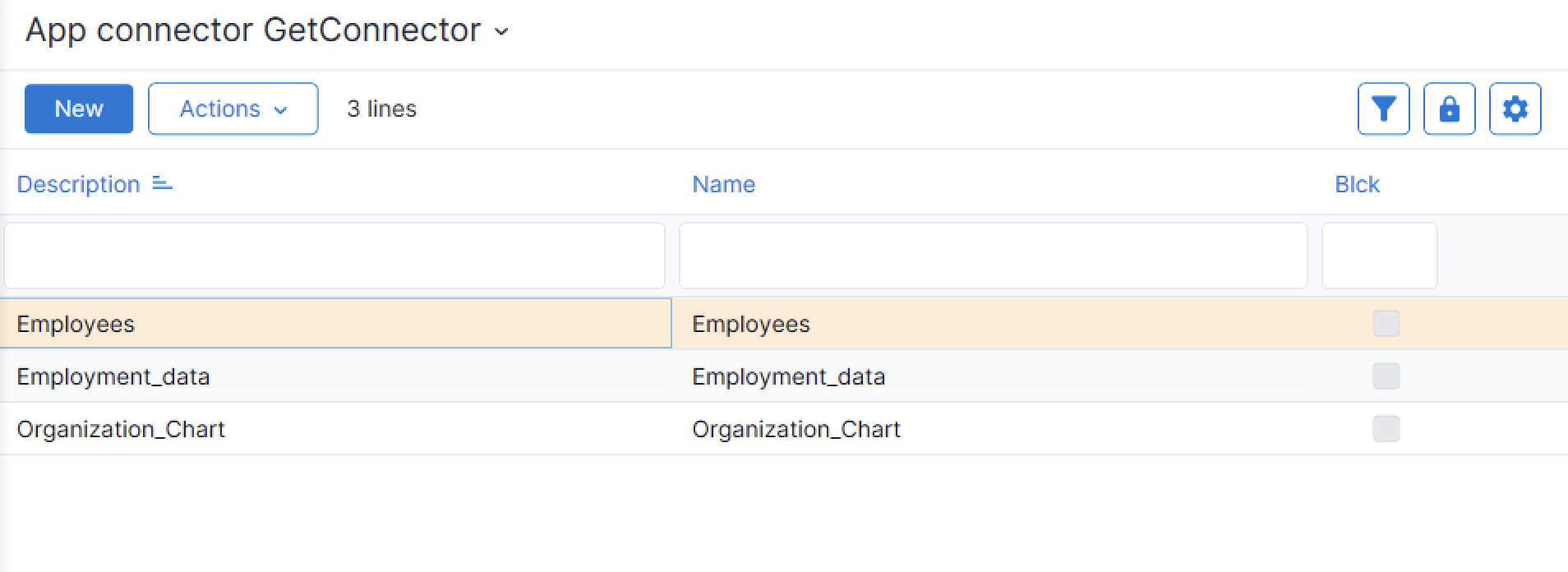
GetConnectors: HRIS
The AFAS HRIS integration is currently read-only: there are no write/update endpoints, so you can skip step 3 (UpdateConnectors).
The HRIS package contains three GetConnectors, each with a distinct job:
| GetConnector | What Apideck uses it for |
|---|---|
Employees | The employee list: decides which employees the connection returns. |
Employment_data | The per-employee detail, and the source of any extra/custom fields. |
Organization_Chart | Departments / organisation units. |
Adding fields is done on
Employment_data; controlling which employees appear is done onEmployees. Editing the wrong one is the most common source of confusion: see "Customizing" and "Filtering" below.
GetConnectors: Accounting (beta)
The accounting package maps the following connectors:
Profit_Debtors: customersProfit_Creditors: suppliersProfit_FinancialAccounts: ledger-accountsProfit_VAT_code: tax-ratesProfit_Transactions: journal-entries (read)Profit_Employers: company-info + subsidiariesProfit_SalesInvoices: invoicesProfit_PurchaseInvoices: billsProfit_CreditNotes: credit-notes (tenants without a dedicated credit-notes connector can point atProfit_SalesInvoicesfiltered toCreditnotaVerkoop)Profit_Payments: customer paymentsProfit_BillPayments: supplier paymentsProfit_Items: invoice-itemsProfit_Projects: projectsProfit_BankAccounts: bank-accountsProfit_DimAx1: tracking-categories (override toDimAx2..5per tenant preference)Profit_OpenItemsDebtors: aged-debtorsProfit_OpenItemsCreditors: aged-creditorsProfit_PurchaseOrders: purchase-ordersProfit_SalesQuotes: quotesProfit_EmployeeExpenses: expensesProfit_ExpenseCategories: expense-categoriesProfit_ExpenseReports: expense-reportsProfit_Warehouses: locationsProfit_ItemCategories: categoriesProfit_AttachedDocuments: attachments (tenant-defined, see below)Profit_BalanceSheet: balance-sheet (tenant-defined, see below)Profit_ProfitAndLoss: profit-and-loss (tenant-defined, see below)Profit_Refunds: refunds (tenant-defined, see below)
Manual enablement (until the accounting ZIP ships): add each connector above manually via App Connector → GetConnectors → Actions → Add → search for name. This takes a few minutes once per environment.
Tenant-defined GetConnectors: AFAS ships no Profit_Refunds, Profit_BalanceSheet, Profit_ProfitAndLoss, or Profit_AttachedDocuments by default. If you need these resources, create your own GetConnectors with matching names (or point the relevant setting in the Vault configuration at an existing custom GetConnector).
Customizing GetConnectors: adding fields
To add or remove the fields returned for a record:
- Open App Connector → GetConnectors.
- Double-click the GetConnector you want to edit:
- HRIS: add custom fields to
Employment_data(returns all data for a given employee). - Accounting: edit the relevant
Profit_*connector for that resource.
- HRIS: add custom fields to
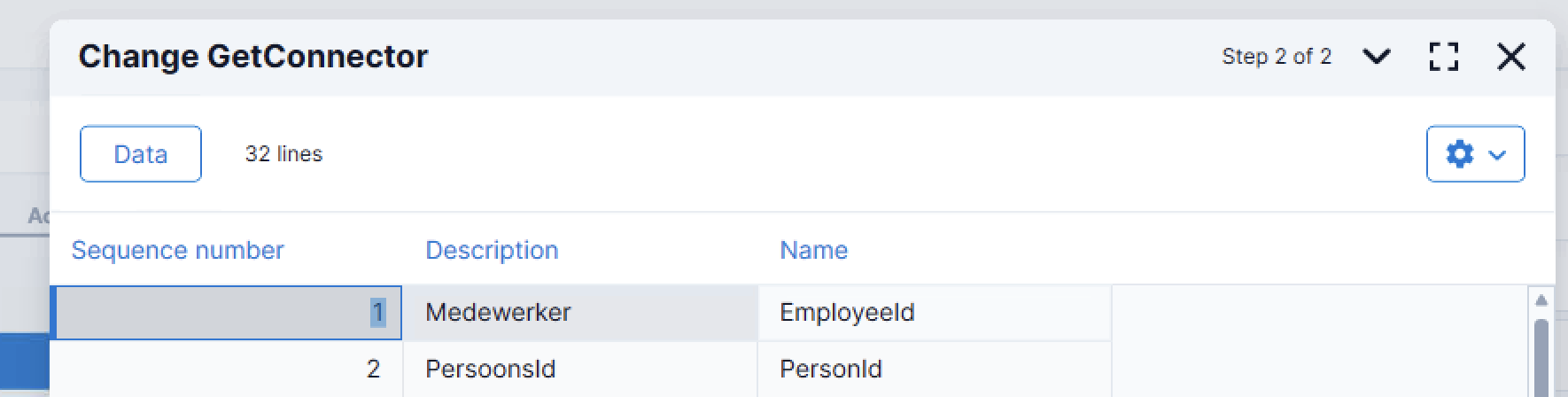
- Click Next, then on the Data step add or remove fields as needed.
Filtering GetConnectors: excluding records
You can restrict which records a connection can access by adding a filter to the GetConnector that backs that list. A fixed filter is applied by AFAS itself, so it applies to the whole connection.
HRIS example: excluding employees. The employee list is served by the Employees GetConnector, so filter there (not Employment_data):
-
Open App Connector → GetConnectors and double-click
Employees.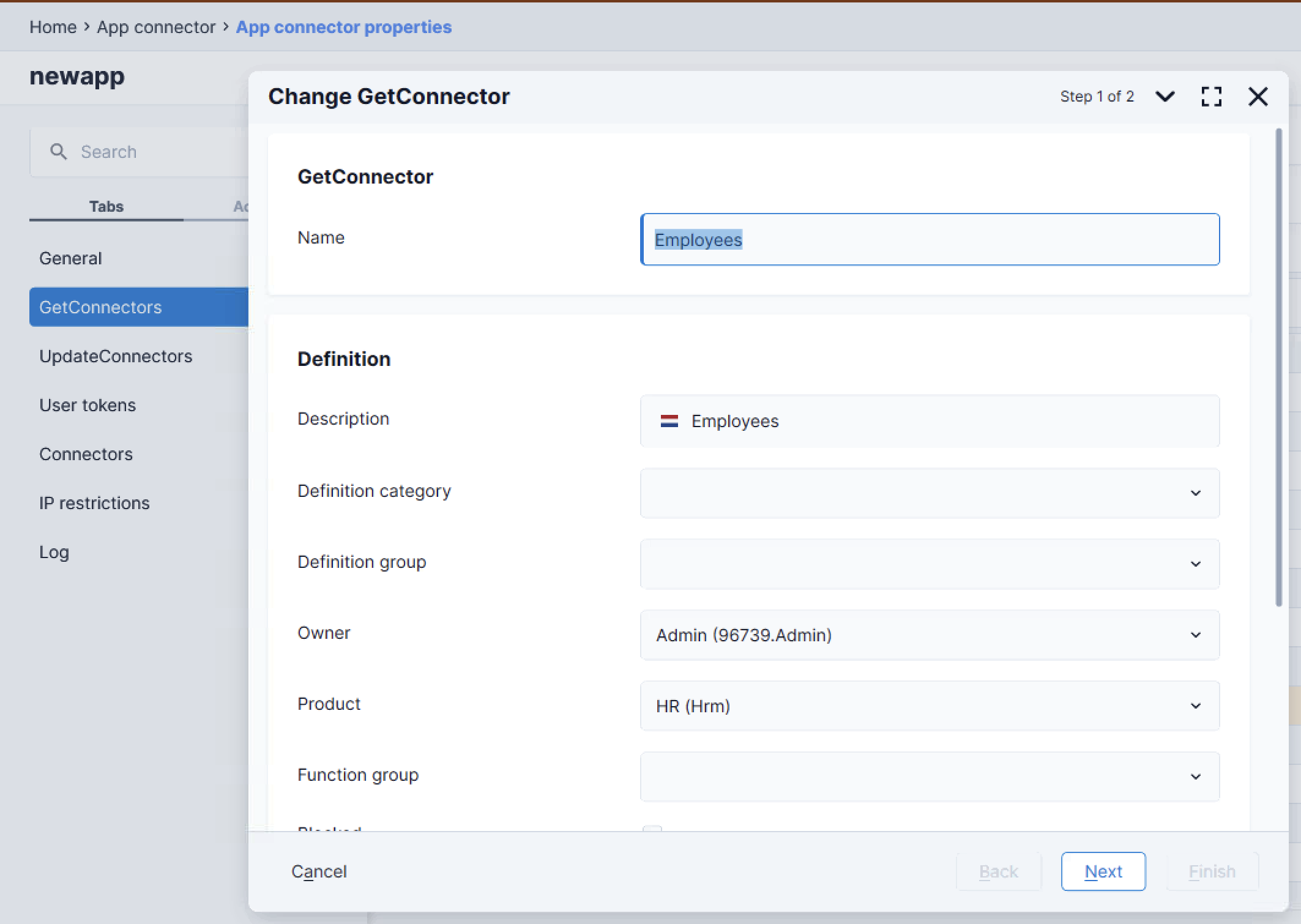
-
Click Next, then Data, then Next again; you'll reach the filter configuration (Field / Filter on these values). (The Data step looks the same as in "Customizing GetConnectors: adding fields" above.)
-
Add a filter line: choose a Field, an operator, and a value. Common exclusions:
Goal Field Operator / value Exclude a whole company / employer Employer!=02Exclude terminated employees Employment end date≥ [Today]ORis emptyExclude a department Organizational unit!=(unit code)Exclude specific people Employee!=(employee number)
-
To combine conditions, use additional filter lines (AND) or the OR on these values column.
-
Finish/save. No change is needed in the Apideck Vault: the existing connection picks up the new filter.
Notes
- Apply exclusion filters on the connector that backs the list (HRIS employees →
Employees, notEmployment_data). A filter on the detail connector (Employment_data) only affects the per-employee detail, not the list. - A field may be labeled differently (captions may be in Dutch, e.g.
Werkgever/Employer). If you can't find a field by its English name, search the Dutch term, and filter by whatever field best identifies the records you want to exclude. - A fixed value filter permanently restricts the connection for everyone. Filters take effect as soon as you save the GetConnector.
3. Add UpdateConnectors (Accounting only, write access)
HRIS is read-only: skip this step. UpdateConnectors apply only to the Accounting API, and only if you plan to use the matching write endpoints.
Add these in the App Connector wizard (Actions → Add UpdateConnector):
| UpdateConnector | Enables |
|---|---|
KnSalesRelationPer | customers: add / update |
KnSalesRelationOrg | customers: add / update (legal entities) |
KnPurchaseRelationPer | suppliers: add / update |
KnPurchaseRelationOrg | suppliers: add / update (legal entities) |
FiAccount | ledger-accounts: add / update |
FiEntries | journal-entries: add / delete |
FbSalesLines | invoices: add |
FbDirectInvoice | bills: add |
FbPayments | payments: add |
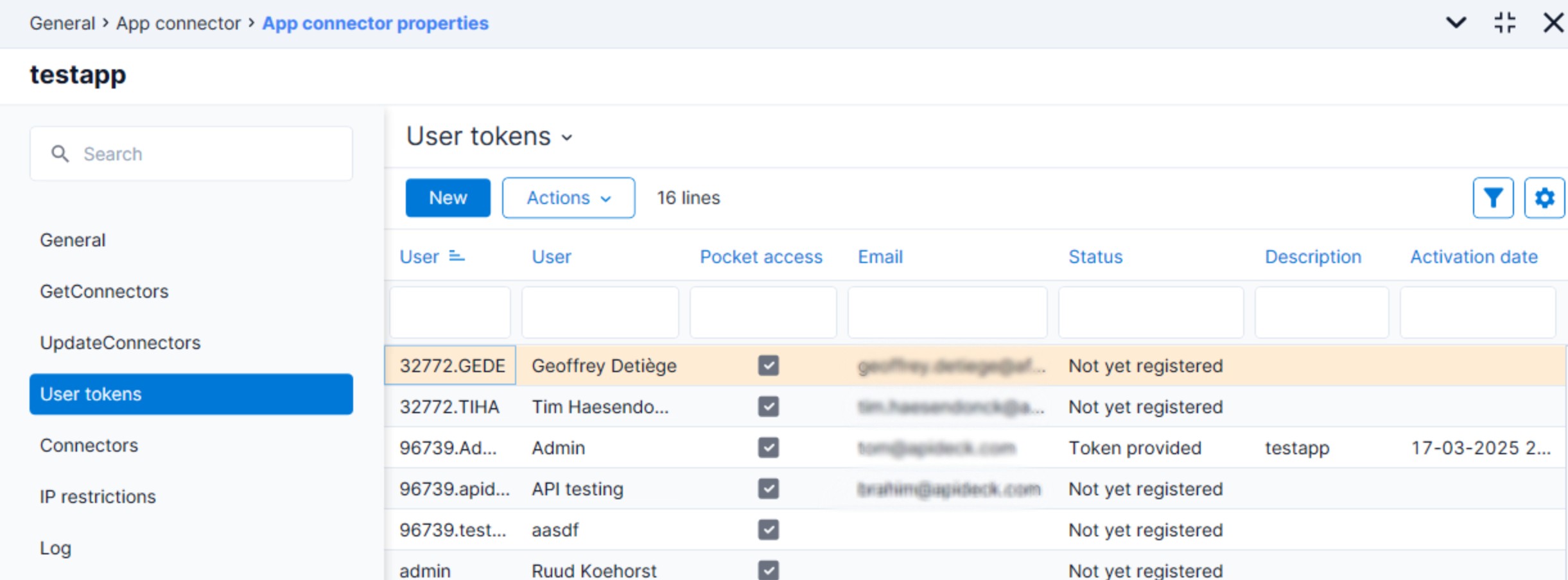
4. Copy the User Token
- After finishing the App Connector wizard, a user token is shown.
- It's displayed only once: copy and store it securely.

To regenerate a lost token: General → Management → App Connector → User Tokens → New.
5. Set Access Rights for the New User Group
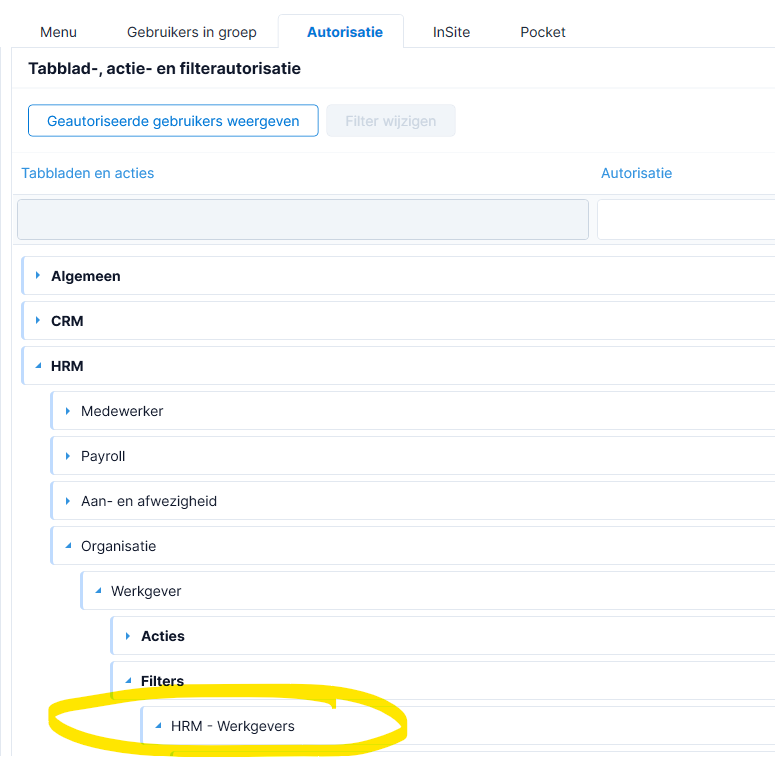
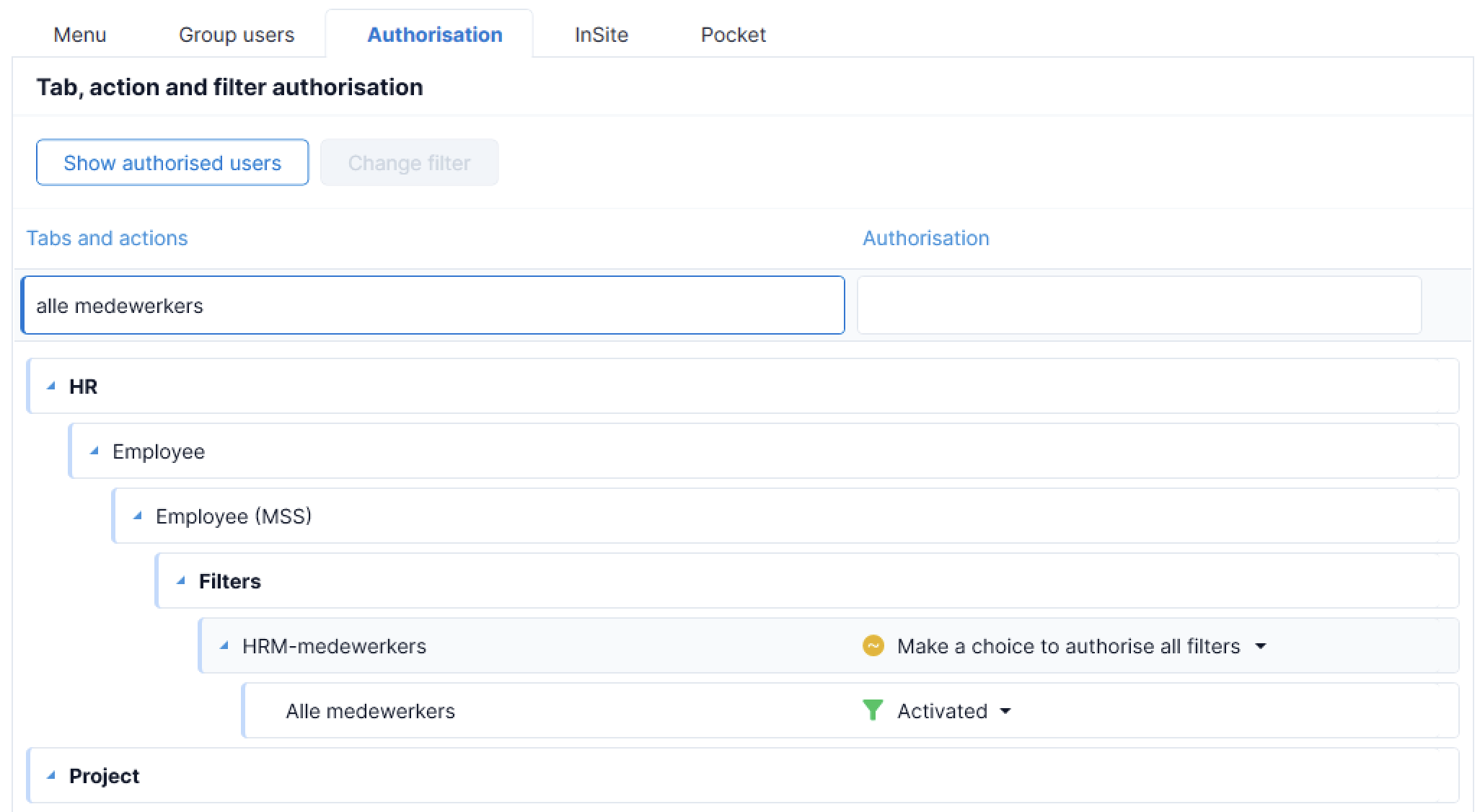
Go to General → Management → Authorisation tool → Group maintenance and open the user group that was created alongside your App Connector. On the Authorisation tab, enable the modules that match your vertical:
HRIS
- HRM – Werkgevers (Employers)
- HRM – Medewerkers (Employees)
Accounting
- Financieel – Grootboek (General Ledger)
- Financieel – Debiteuren (Accounts Receivable)
- Financieel – Crediteuren (Accounts Payable)
- Facturering (Invoicing)
- Inkoop (Purchasing)
6. Vault Connection Setup
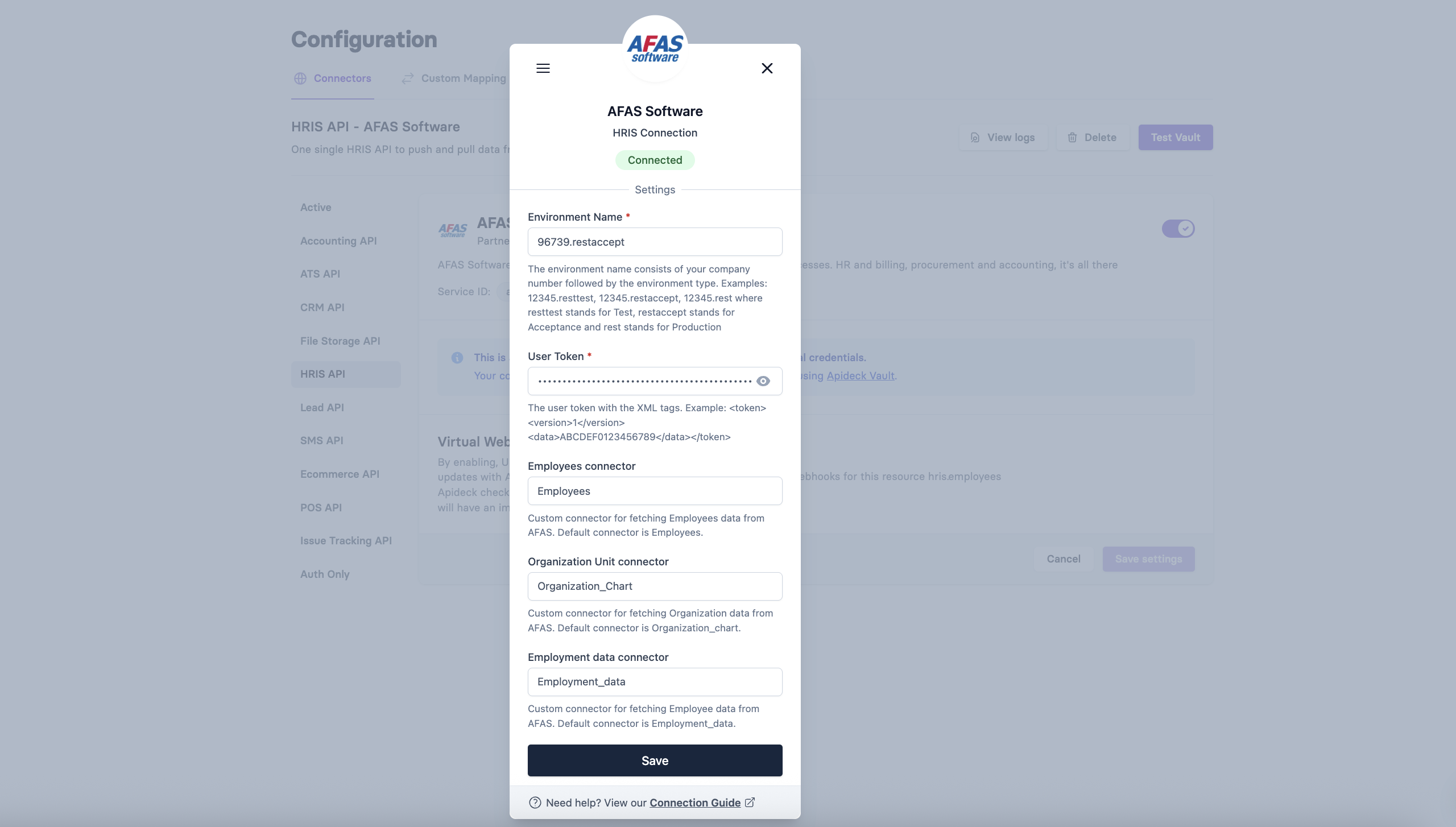
Back in the Apideck Vault:
-
Environment name: your company number followed by the environment type. Examples:
12345.rest: production12345.restaccept: acceptance12345.resttest: test
-
User Token: paste including the XML tags:
-
Custom connector names (optional): if you renamed any imported GetConnector (or point at a custom one), fill in the matching field in the settings form. Defaults match the names in the tables above.
Troubleshooting
- 403 Forbidden on specific resources: the GetConnector (or, for accounting writes, the UpdateConnector) isn't added to your App Connector, or the user group lacks authorisation for the underlying module. Re-check steps 2, 3, 5.
- Empty or missing results despite data existing: a GetConnector's data-filter (in AFAS) excludes the rows. Open the GetConnector in AFAS → Filter and review the filter lines.
- (HRIS) An employee is unexpectedly missing: check the
EmployeesGetConnector's filter (see "Filtering GetConnectors: excluding records"). Filters there decide which employees the connection returns. - (Accounting)
Profit_CreditNotesnot found: your tenant doesn't ship that connector. Create a custom GetConnector (e.g.Profit_CreditNotes_Custom) based onProfit_SalesInvoicesfiltered toCreditnotaVerkoop, then point thecredit_notes_connectorsetting in Vault at its name. - (Accounting) Balance sheet / P&L / refunds unavailable: these require tenant-defined GetConnectors. See the "Tenant-defined GetConnectors" callout under the Accounting subsection.