Greenhouse – Connection Guide
Greenhouse helps thousands of companies design and automate all aspects of hiring throughout their organizations, helping them compete for and win top talent with the Greenhouse Talent Acquisition suite.

How to Connect to Greenhouse
This guide will help you connect your Greenhouse account to Apideck's Unified API using OAuth.
There is nothing to fill in: the OAuth credentials this connection runs on are configured once by the team that set up the integration, so connecting is three clicks — authorize, sign in to Greenhouse, approve.
Prerequisites
Before you begin, make sure you have:
- An active Greenhouse account.
- A Greenhouse user who is a Site Admin. Greenhouse's help center allows either a Site Admin or a user with the "can manage ALL organization's API credentials" permission to authorize a Harvest V3 partner integration (Greenhouse: Connect to Harvest v3 partner integrations). In practice, authorize as a Site Admin: Harvest V3's list endpoints return
403for a non-Site-Admin, and list endpoints back every resource this connector reads, so the credentials permission on its own leaves the connection unable to fetch data (Greenhouse: Harvest partner OAuth).
The connection operates with the permissions of whoever authorizes it, and records it creates or updates in Greenhouse are attributed to that user — so choose the authorizing user deliberately rather than using whoever happens to be signed in. See the service account option in step 2.
Steps
1. Start the connection in Apideck Vault
Open the Greenhouse connector in Apideck Vault and click Authorize. You will be redirected to Greenhouse at auth.greenhouse.io.
2. Sign in to Greenhouse
Sign in with the Greenhouse account that should own the connection.
If you are a Site Admin, Greenhouse also offers authorizing with an organization-level service account instead of your own user. A service account is an organization-level identity with no username or password, and it persists until a permissioned user disconnects it — so the connection keeps working when an individual leaves the company.
3. Approve the requested access
Review the access Greenhouse lists for the integration and approve it. You are redirected back to Apideck and the connection is active.
Notes
- Re-authorize after a quiet period. Greenhouse expires the connection's refresh token after 24 hours of inactivity. A connection that goes a full day without any API activity cannot renew itself and must be re-authorized from Vault before it can be used again. Low-traffic or seasonal integrations hit this most often.
- Job post URLs need no setup. Harvest V3 returns each job post's public job board URL directly, so there is no job board setting to configure. Internal-only job posts have no public URL and are returned without one.
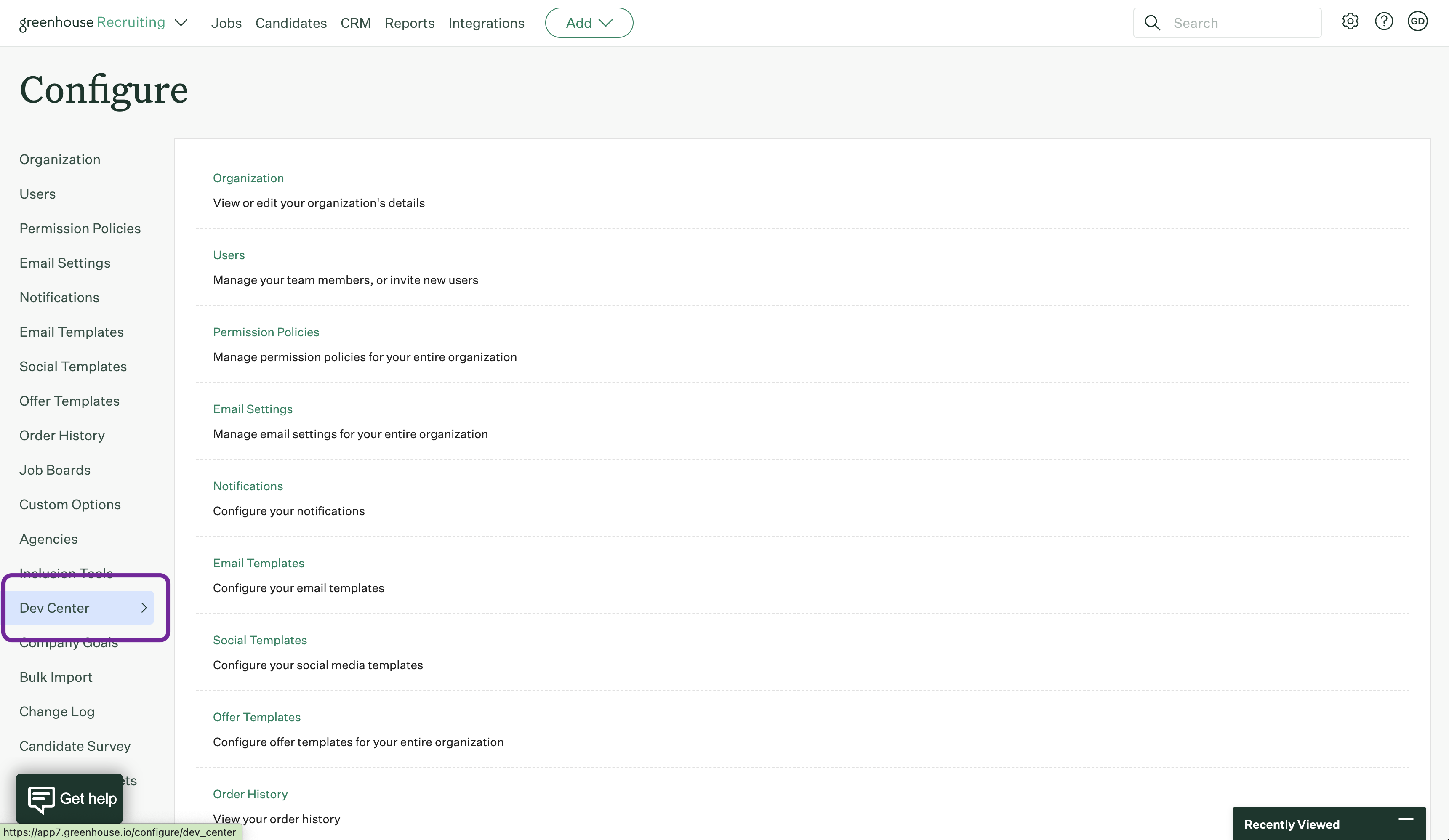
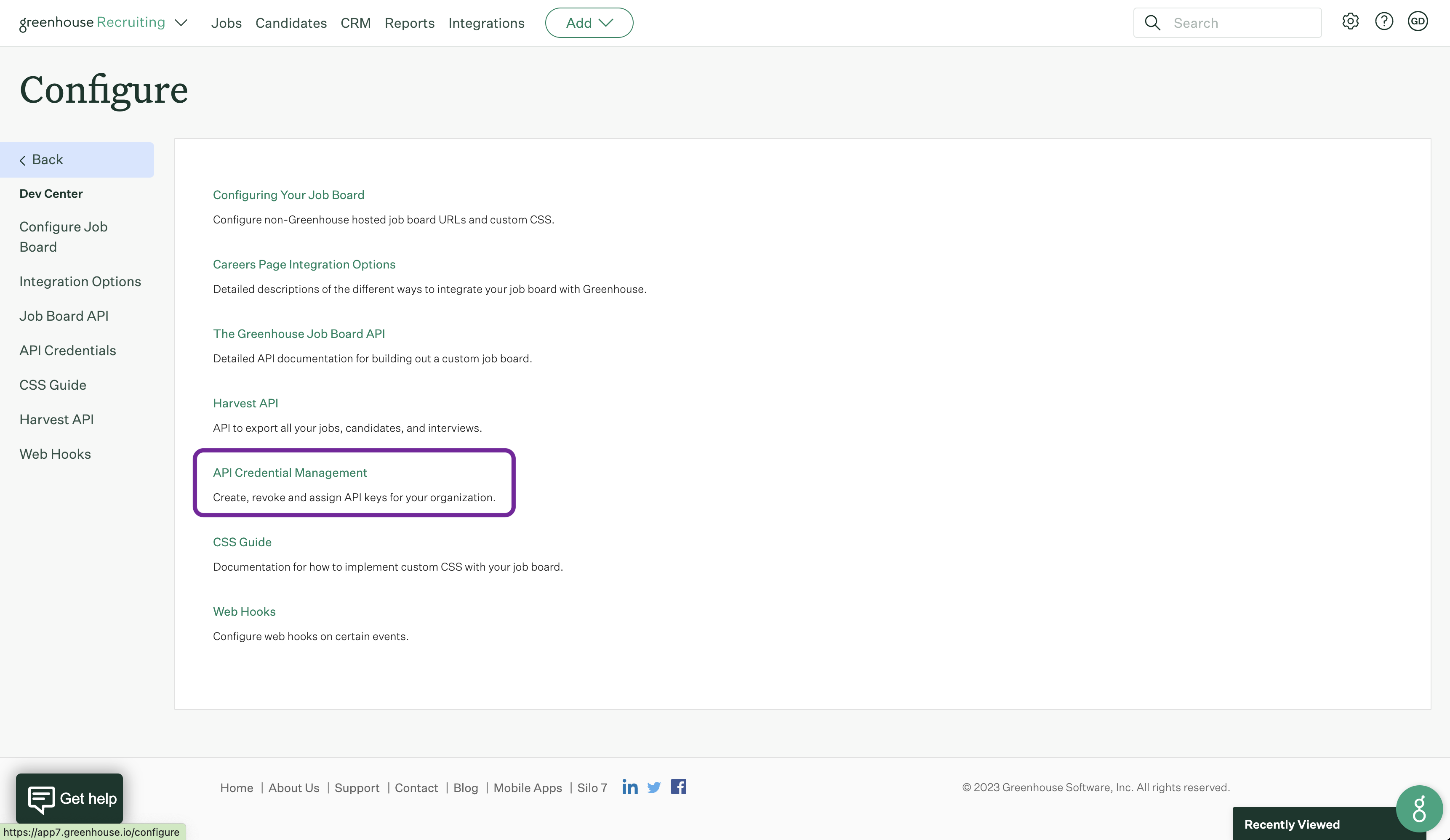
- Revoking from the Greenhouse side. Click the Configure icon, select Dev Center, then Connected integrations. Disconnecting revokes access immediately, and the same user can reconnect later.
Troubleshooting
Greenhouse rejects the authorization because of your account. Authorizing a Harvest V3 partner integration requires a Site Admin (or a user who can manage all of your organization's API credentials). Ask a Site Admin to authorize the connection, or authorize with a Site Admin service account.
Authorization fails with an "invalid scope" error. Greenhouse provisions the set of scopes on the integration's credentials as a fixed set, and authorization fails outright if the integration requests one that was not provisioned. This is not something you can change from your Greenhouse account or from Vault — report it to the team that set up the integration, who requests the missing scope from Greenhouse and then asks you to authorize again.
The connection worked, then stopped after a quiet period. Greenhouse expires the refresh token after 24 hours of inactivity. Re-authorize the connection in Vault.
Still stuck? Contact Apideck Support.