Sage Intacct REST – Configuration Guide

Service ID: sage-intacct-rest

Increase ROI and transform your organization with the first and only preferred provider of the AICPA for accounting and financial management software for companies of any size.

How to Create OAuth Credentials for Sage Intacct REST

This guide will help you set up your Sage Intacct REST OAuth app to connect with Apideck. Sage Intacct is a cloud-based financial management and accounting software that provides comprehensive accounting solutions for businesses.

The Sage Intacct REST connector supports the unified Accounting API. You can also reach any Sage Intacct REST endpoint that is not covered by a unified resource through the Apideck Proxy API, which returns the raw Sage response.

For what your consumers need to do on their side — permissions, enabling customer refunds, and keeping the token alive — see the connection guide.

💡 TIP: Sage Intacct has two APIs and Apideck has a connector for each — sage-intacct (XML/SOAP gateway) and sage-intacct-rest. Sage releases new objects on the REST API only, and some resources exist on just one of the two: customer refunds are REST-only, while the financial reports (balance sheet, profit and loss, aged debtors) are available only on the XML connector. See our Sage Intacct API Guide.

Prerequisites

Before you begin, make sure you have the following:

  1. A Sage Intacct account with access to the Sage Developer Console
  2. A Web Services developer license, which issues the Intacct Web Services License Password you enter while registering the app — see below for the two ways to get one
  3. An Apideck account

Getting a Web Services developer license

Registering an OAuth app in the Sage Developer Console requires a Web Services developer license (a Web Services sender ID and its license password). The license is the firm requirement; which route you take to it depends on your relationship with Sage. There are two routes to that one license:

  • Directly from Sage. Contact your Sage account manager and ask for a standalone Web Services developer license. Third-party setup guides describe existing Sage Intacct customers taking this route when they do not need a Marketplace listing; your account manager can confirm whether it is open to your account.
  • Through the Sage Intacct Marketplace Partner Program. Apply at marketplace.intacct.com/BecomeAPartner. Sage's own developer FAQ points here when asked how to obtain a Web Services developer license, and the license comes with the partnership, alongside the Marketplace listing and partner support.

Costs. Marketplace Partner Program membership fees are due net 30 from execution of the partner contract, and Sage charges API consumption fees once your consumers are live on the integration; see the connector Overview for current pricing. Ask your Sage account manager or partner contact for an expected timeline, and for the terms that apply if you take the standalone developer license route instead.

You do not have to wait for the license to start evaluating: Apideck ships registered sandbox credentials for Sage Intacct REST, so your consumers can authorize a connection — their company Admin still has to add Apideck's Client ID to Authorized Client Applications, exactly as they would for your own app — and you can exercise the unified Accounting API before your own OAuth app exists. Your own Client ID and Secret are what you use in production. (Those credentials are separate from a Sage Intacct sandbox company, which is a paid, licensed Sage feature — see Select Client Scope.)

1. Enable the Sage Intacct REST connector in Apideck

First, enable the Sage Intacct REST connector in your Apideck Dashboard:

2. Create OAuth App in Sage Developer Console

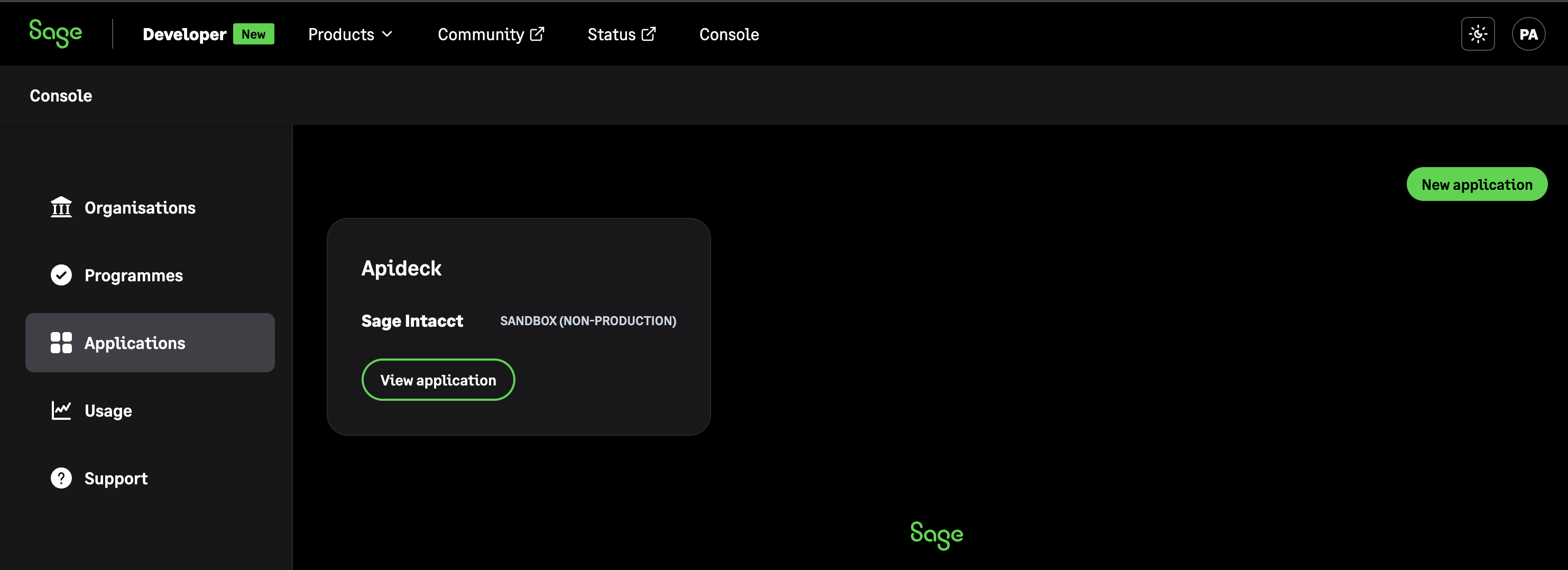
Login to Sage Developer Console

Sage Developer Console - Applications

  • Click on Applications in the navigation menu
  • You'll see a list of your existing applications (if any)

Create New Application

  • Click Create new application to start setting up your OAuth app

Select API Type

  • Select API - REST as the API type for your application
  • This ensures your app uses the REST API endpoints
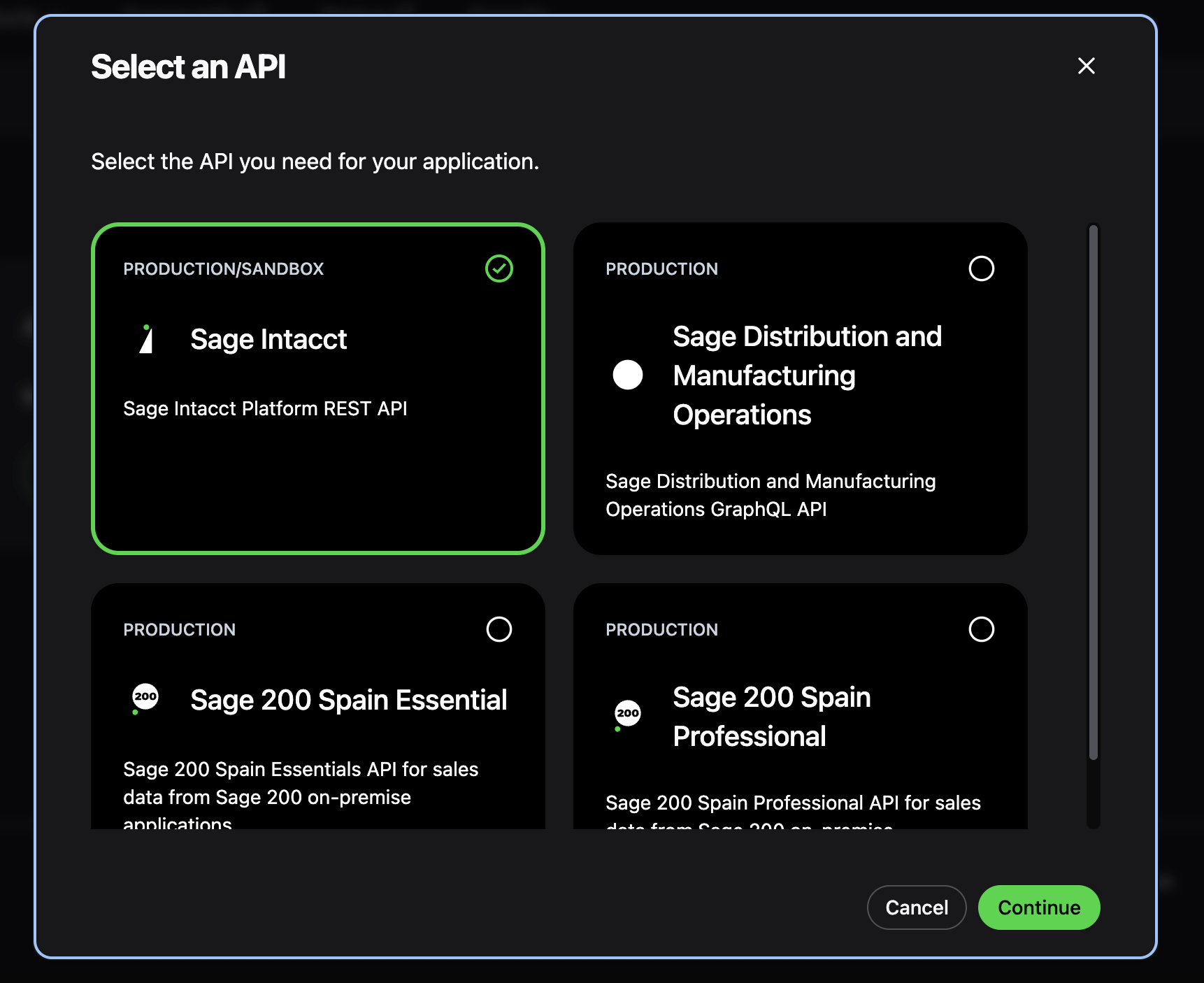
Sage Intacct REST - Create Application

Configure Application Details

Fill out the basic information for your app:

  • Name: Enter a descriptive name for your application (e.g., "Apideck Integration")
  • Terms and conditions URL: Provide a URL to your terms and conditions (optional)
  • Homepage: Enter your application's homepage URL
  • Contact email address: Provide an email address for support inquiries
  • Description: Provide a brief description of your integration
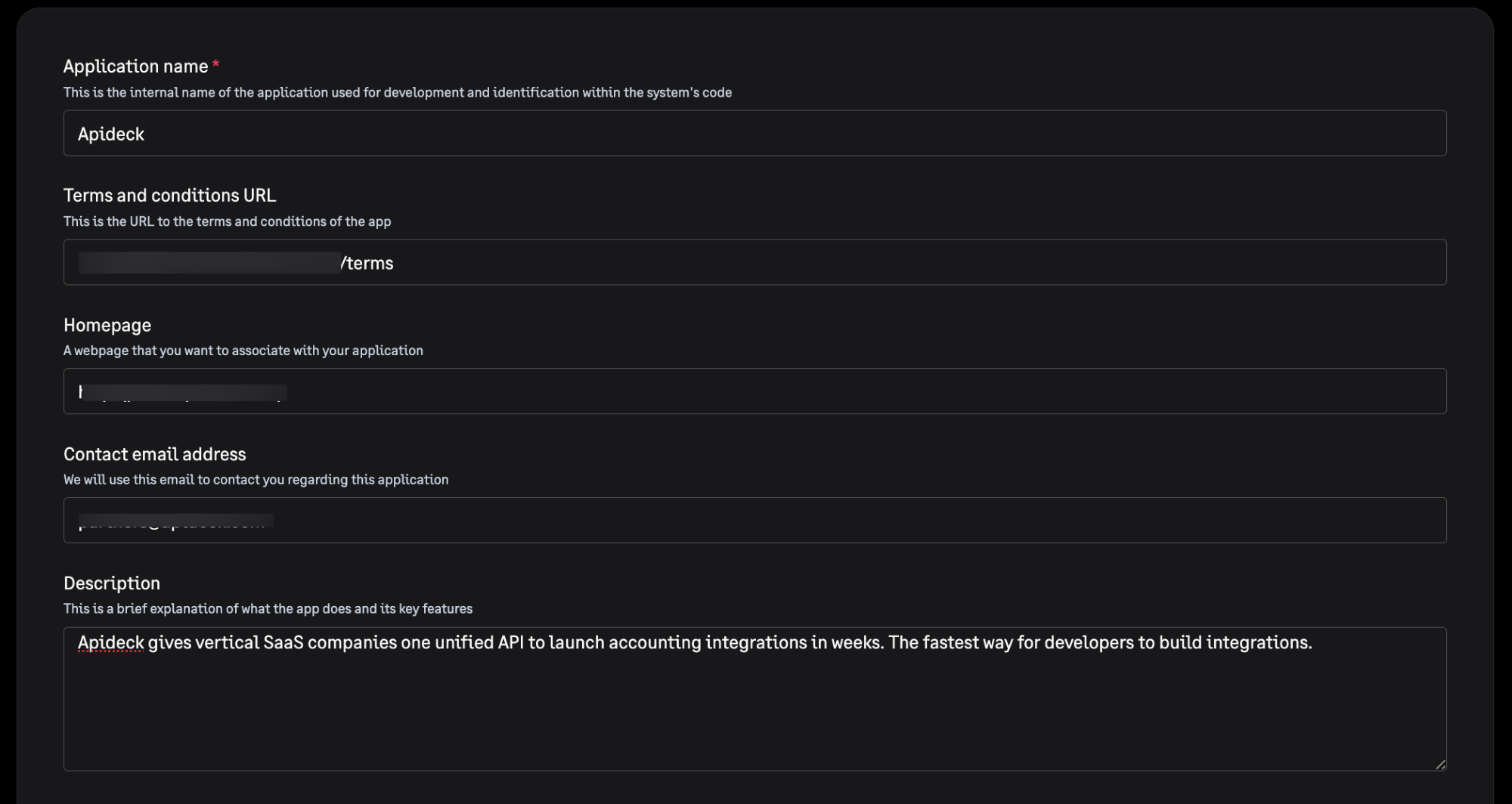
Sage Intacct REST - Add Application Details

Configure Redirect URI

  • Go to the next step in the application creation process
  • Add the following redirect URI:
    https://unify.apideck.com/vault/callback
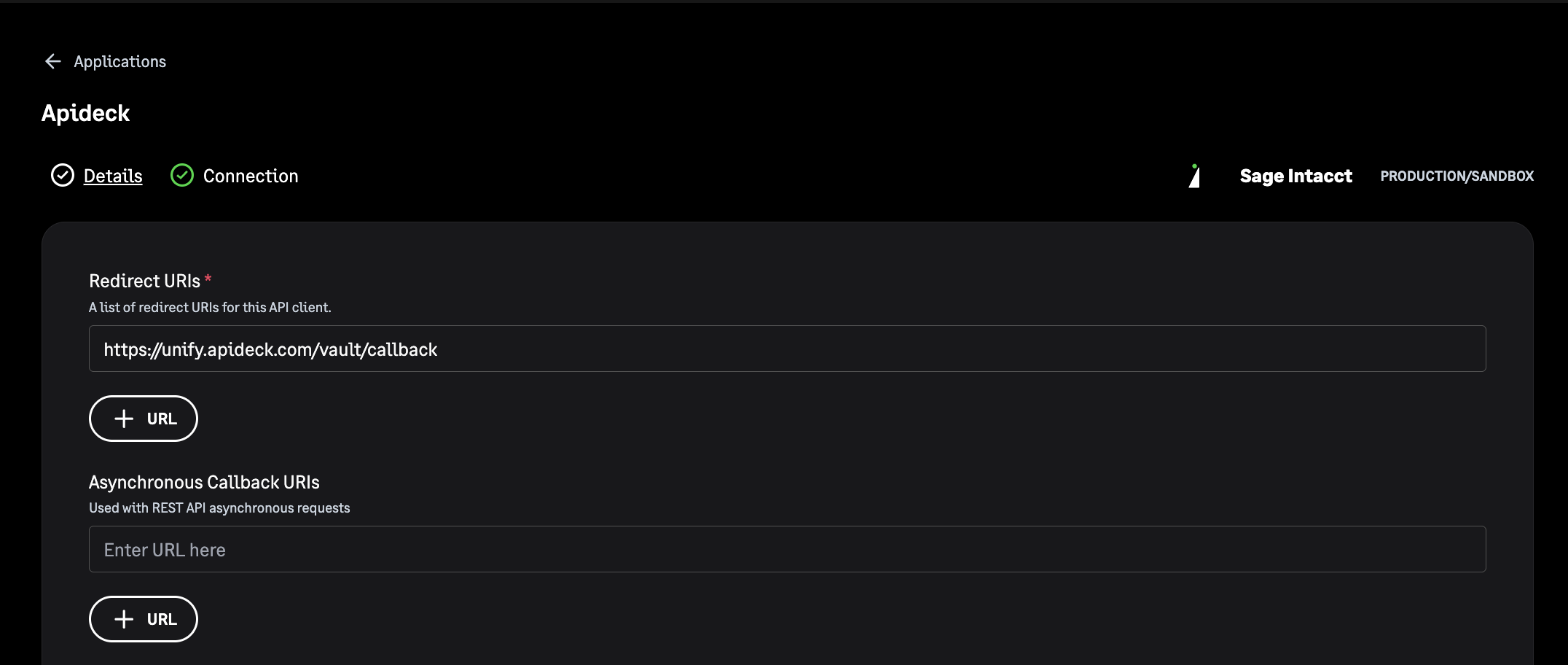
    

Sage Intacct REST - Add Redirect URI

Add Intacct Web Services License Password

  • Enter your Intacct Web Services License Password
  • This is the password issued with your Web Services developer license (see Prerequisites); Sage uses it to authenticate the app registration

Select Client Scope

  • Choose the appropriate Client Scope for your application:
    • Production: For live/production environments
    • Non-production: For testing and development environments
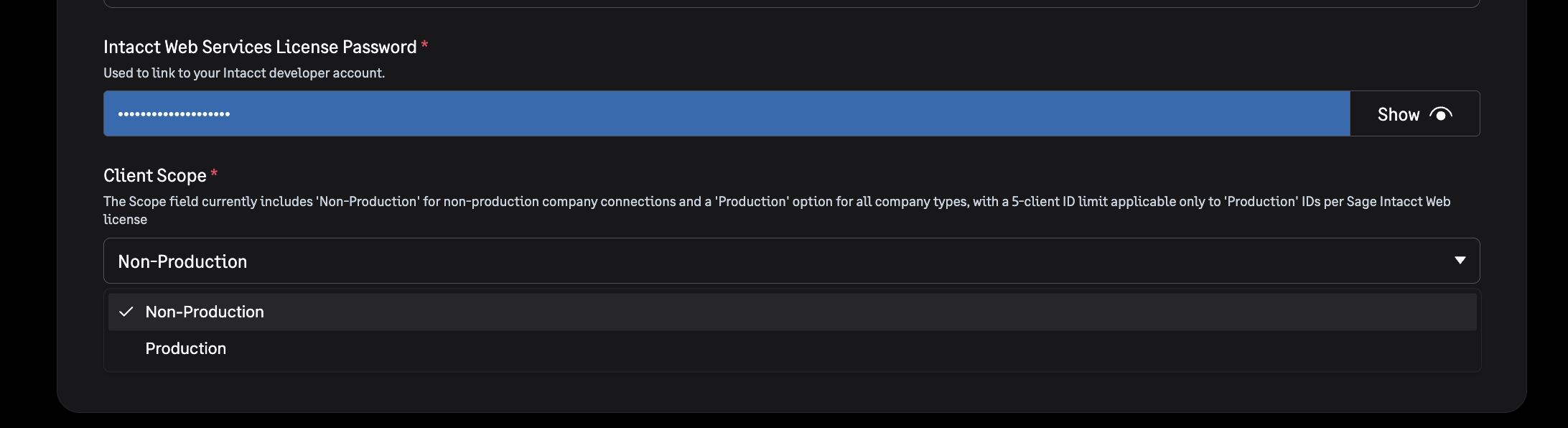
The client scope is fixed when the application is created and cannot be changed afterwards, so register a separate application for each environment you need.

Registering a Non-production application costs nothing. The Sage Intacct sandbox company you would point it at is a separate, paid, licensed Sage feature, requested under Company > Admin > Sandboxes: Sage currently offers it to newer direct customers with a small tenant size, and not to customers on a multi-entity console or who bought Sage Intacct through a partner. There is no self-serve sign-up. A sandbox also omits several modules (including Fixed Assets, Collections, Prepaid Expense Amortization, Advanced Audit Trail and the interactive reporting tools) and is valid only to the end of the production billing cycle — see Sage's About sandboxes.

Apideck's registered sandbox credentials (see Prerequisites) answer a different question. They are an OAuth client, so they remove the need to register your own Sage OAuth application, but they do not supply a Sage Intacct company to test against. A Non-production application is pointed at a sandbox, trial or developer company, so if a sandbox company is not available to your account, a trial or developer company is what you authorize against. Your Sage account manager can tell you about sandbox eligibility for your company.

Sage Intacct REST - Select Scope

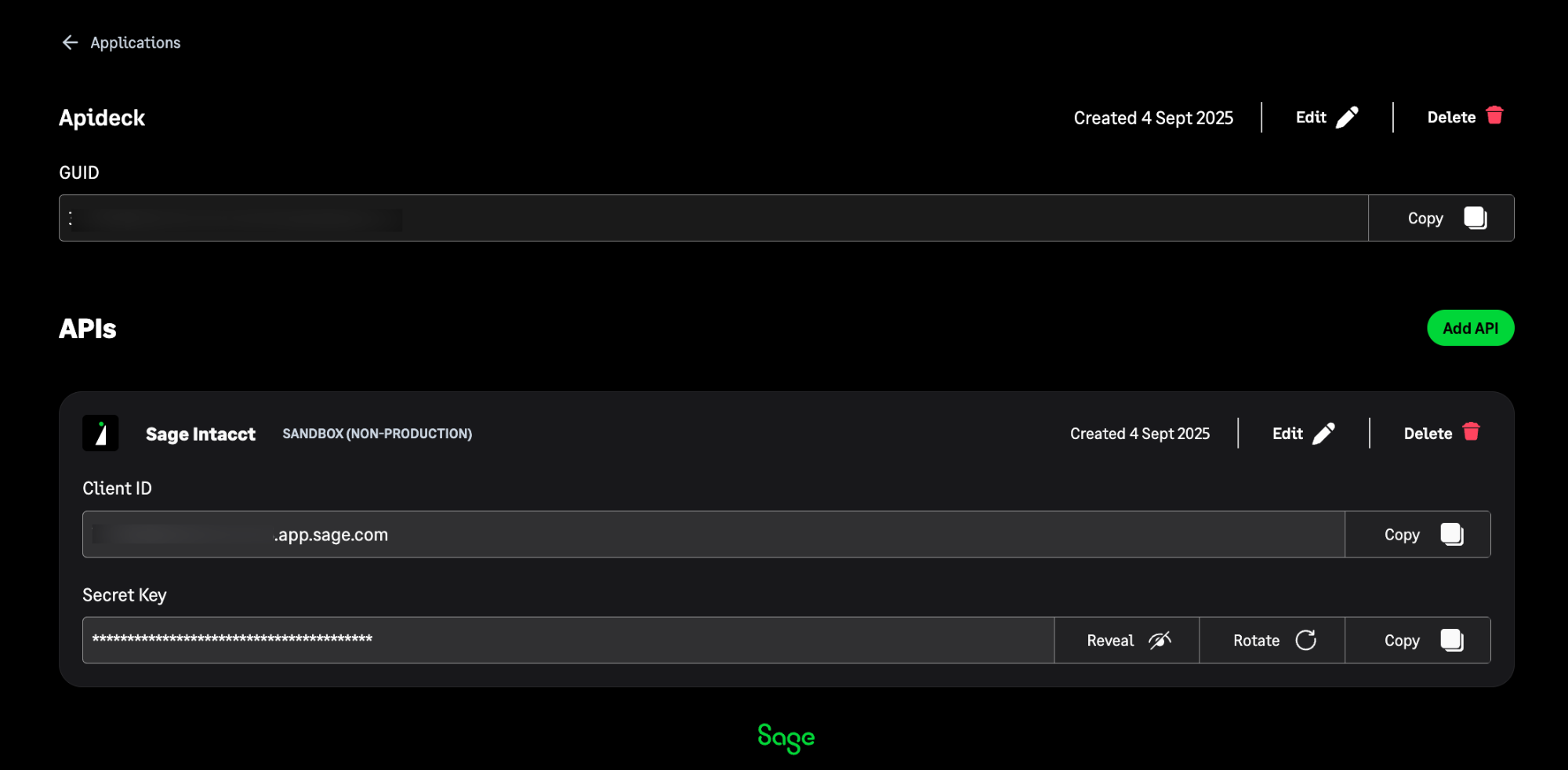
Copy OAuth Credentials

After creating your application, you'll see your OAuth credentials:

  • Client ID
  • Secret Key

Sage Intacct REST - Copy Credentials

Keep the Client ID to hand after you finish here: each consumer's Sage Intacct company Admin has to add it to Authorized Client Applications before your app can call that company, so it is the one value you pass on to them. The connection guide walks them through it.

3. Configure connector in Apideck

Now that you've successfully created your Sage Intacct REST OAuth app, you can add the credentials in the Apideck Dashboard.

Add Credentials

  • Go to the Sage Intacct REST connector settings in your Apideck Dashboard
  • Enter the following credentials:
    • Client ID: Paste the Client ID you copied from the Sage Developer Console
    • Client Secret: Paste the Client Secret you copied from the Sage Developer Console
  • Click Save settings to save your credentials
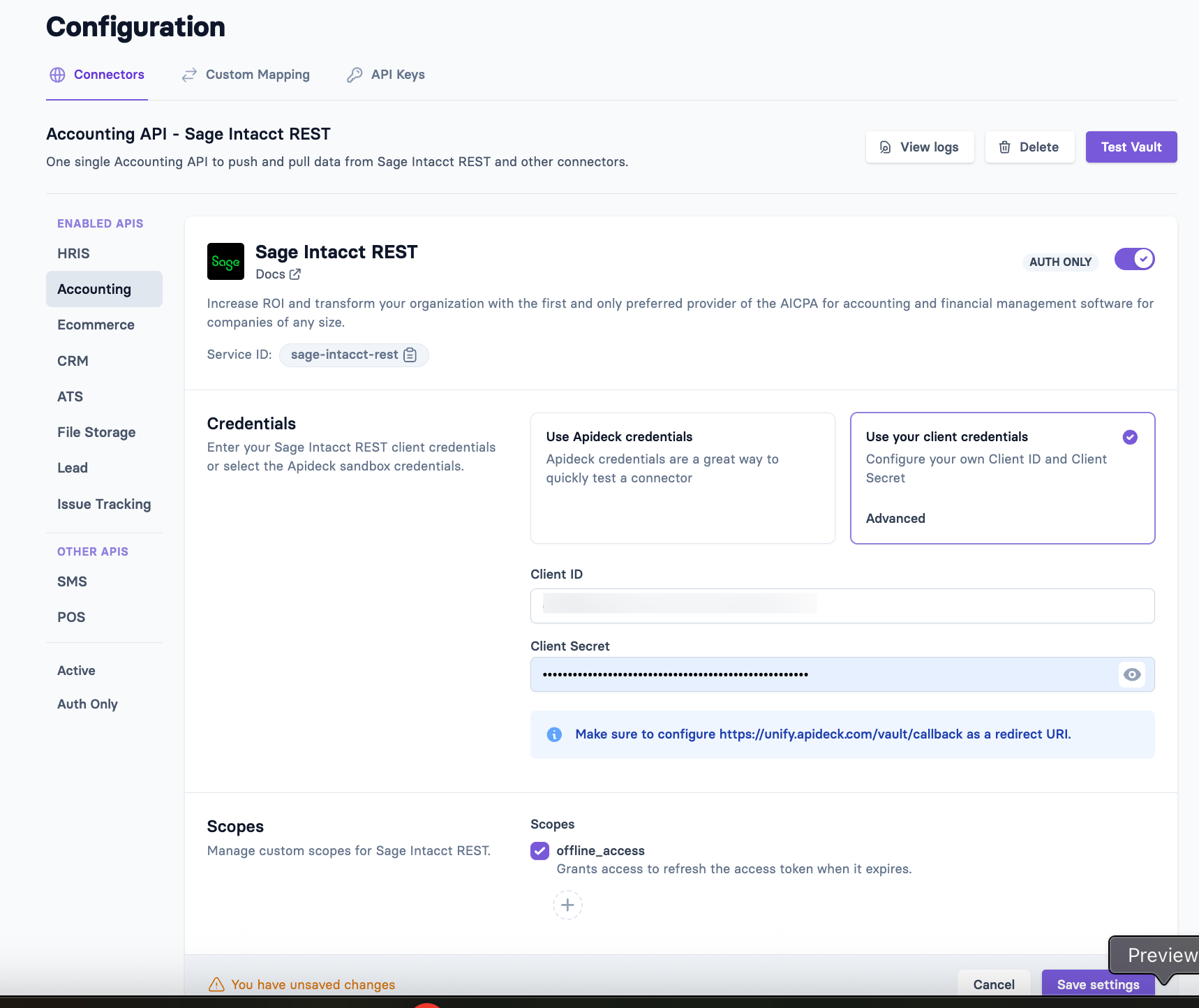
Sage Intacct REST - Configure Connector

4. Test the Connection

You can test your Sage Intacct REST connector by clicking Test Vault in the connector configuration page.

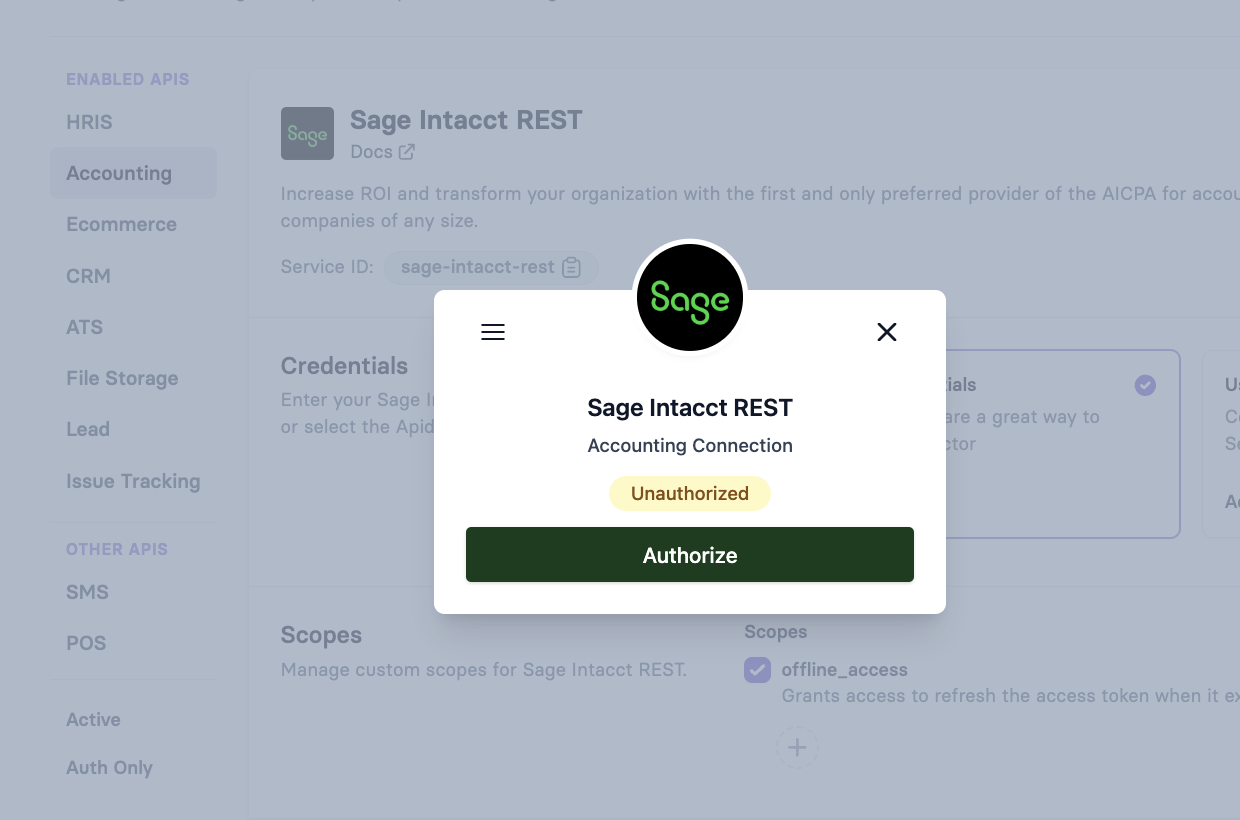
Authorize the Connection

  • Click Authorize

Sage Intacct REST - Connection Unauthorized

Login with Sage Intacct Credentials

  • Log in with your Sage Intacct user credentials

Verify Connection Status

  • After successful authorization, your connection should show as Connected
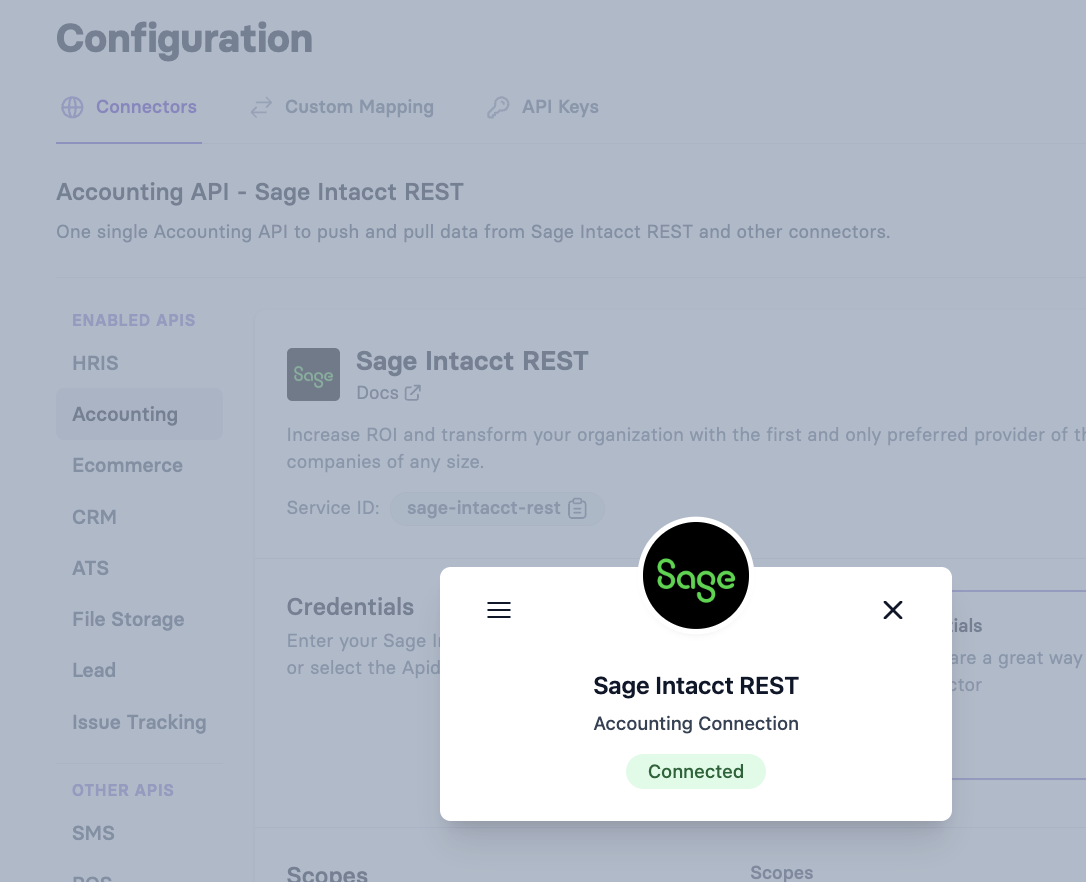
Sage Intacct REST - Connected Vault

Do your first API call to the Sage Intacct REST API

To call a Sage Intacct REST endpoint that no unified resource covers, use the Apideck Proxy API.

  1. Connect through Vault
  2. Test with this call to the Proxy API:
curl --location 'https://unify.apideck.com/proxy' \
  --header 'x-apideck-consumer-id: test-consumer' \
  --header 'x-apideck-app-id: {APIDECK_APP_ID}' \
  --header 'x-apideck-service-id: sage-intacct-rest' \
  --header 'x-apideck-downstream-url: https://api.intacct.com/ia/api/v1/objects/company-config/entity' \
  --header 'Content-Type: application/json' \
  --header 'Accept: application/json' \
  --header 'Authorization: Bearer {APIDECK_API_KEY}'

Replace {APIDECK_APP_ID} and {APIDECK_API_KEY} with your actual Apideck credentials. Replace the x-apideck-downstream-url with the appropriate Sage Intacct REST API endpoint according to Sage Intacct's REST API documentation.

FAQ and troubleshooting

Can I change an application from Non-production to Production later? No. The client scope is set at creation, so promote by registering a second application with the Production scope and swapping the Client ID and Secret in the connector settings.

A consumer authorized successfully but every call returns 403. The company Admin most likely has not added your Client ID to Authorized Client Applications yet, or the authorizing user's role lacks permission on that module. Both are consumer-side steps covered in the connection guide.

Authorization worked, then the connection started failing with REST-2102. Sage's API tokens are session-bound: signing in to the Sage Intacct web UI as the authorizing user invalidates the token. Advise consumers to authorize with a dedicated integration user that nobody signs in as interactively.

Do I still need my own OAuth app if the Apideck sandbox credentials work? Yes, for production. With Apideck's credentials the consent screen shows Apideck branding and the connection runs on Apideck's registered Sage application; your own Client ID and Secret put your brand on the consent screen and your license behind the calls.

Still stuck? Reach out to Apideck Support.